Daybook User Manual: Your Day's Money on Your Phone
A step-by-step phone guide to the BIZA Daybook for traders and wholesalers: record goods sold to distributors, money received, purchases, supplier payments, expenses, loans, other income and the owner's own money in and out in plain words; see today's cash; see who owes you and whom you owe; and fix a mistake without losing history. Your books, profit and loss and balance sheet stay correct as you go.
Daybook User Manual
The Daybook is the simplest way to keep your business accounts in BIZA. You write down what happened today, as you would in a paper day book: sold Ravi 25,000 of rice, Khalid paid 8,000, spent 400 on fuel. BIZA turns each line into proper accounting behind the scenes, so your cash book, your profit and loss and your balance sheet are always up to date, and you always know who owes you and whom you owe.
This guide is written for your phone. Every picture is a phone screen. It takes about ten minutes to read. The pictures use a sample business, Al Noor Wholesale; your screens show your own business, people and amounts.
Download this manual as a PDF: English · العربية
BIZA runs from your phone's Home screen like any other app, with no app store and no download. Section 1 shows how to put it there.
1. Before you start (once)
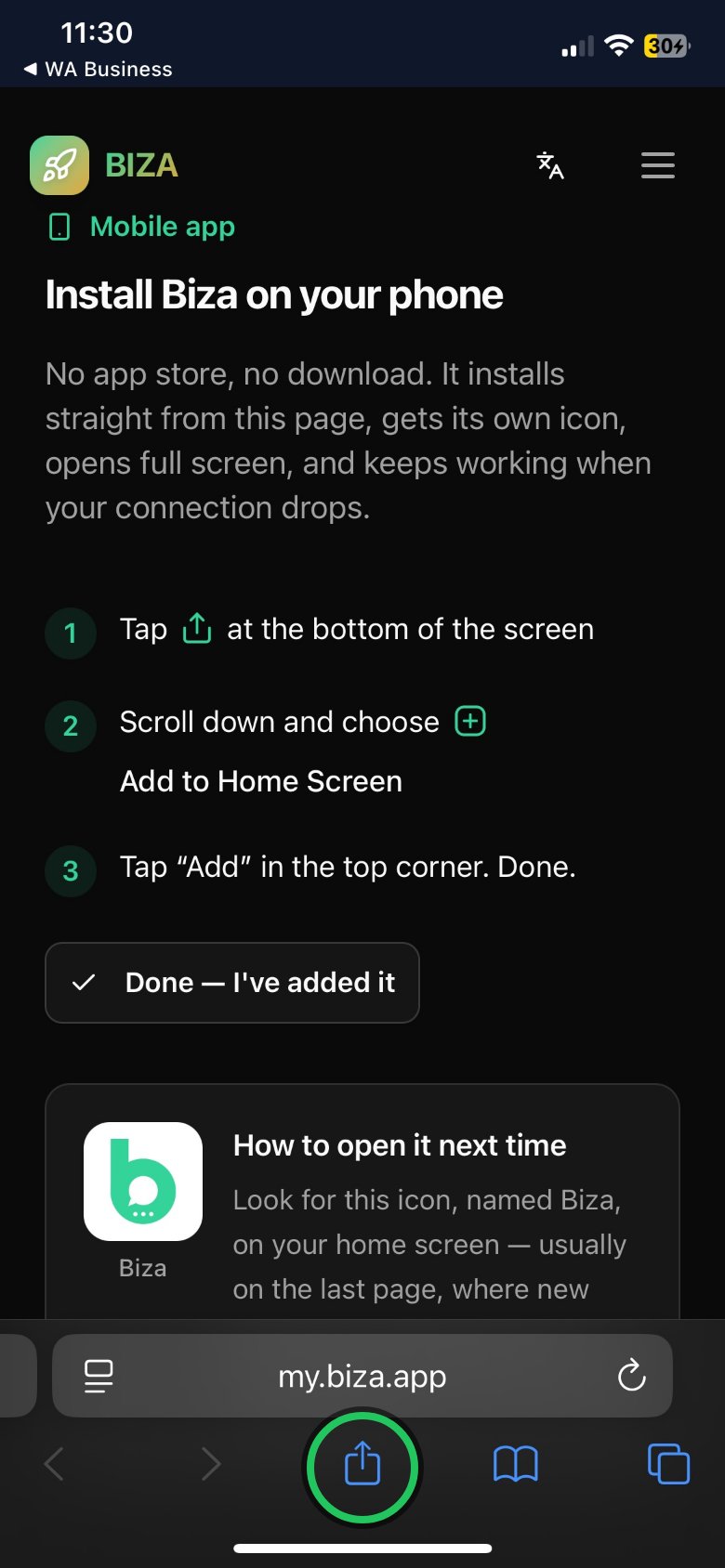
Install BIZA onto your Home screen. On your phone, open my.biza.app/install.
- Android: tap Install Biza and confirm. If the page shows steps instead of the button, tap ⋮ at the top of the browser and choose Install app.
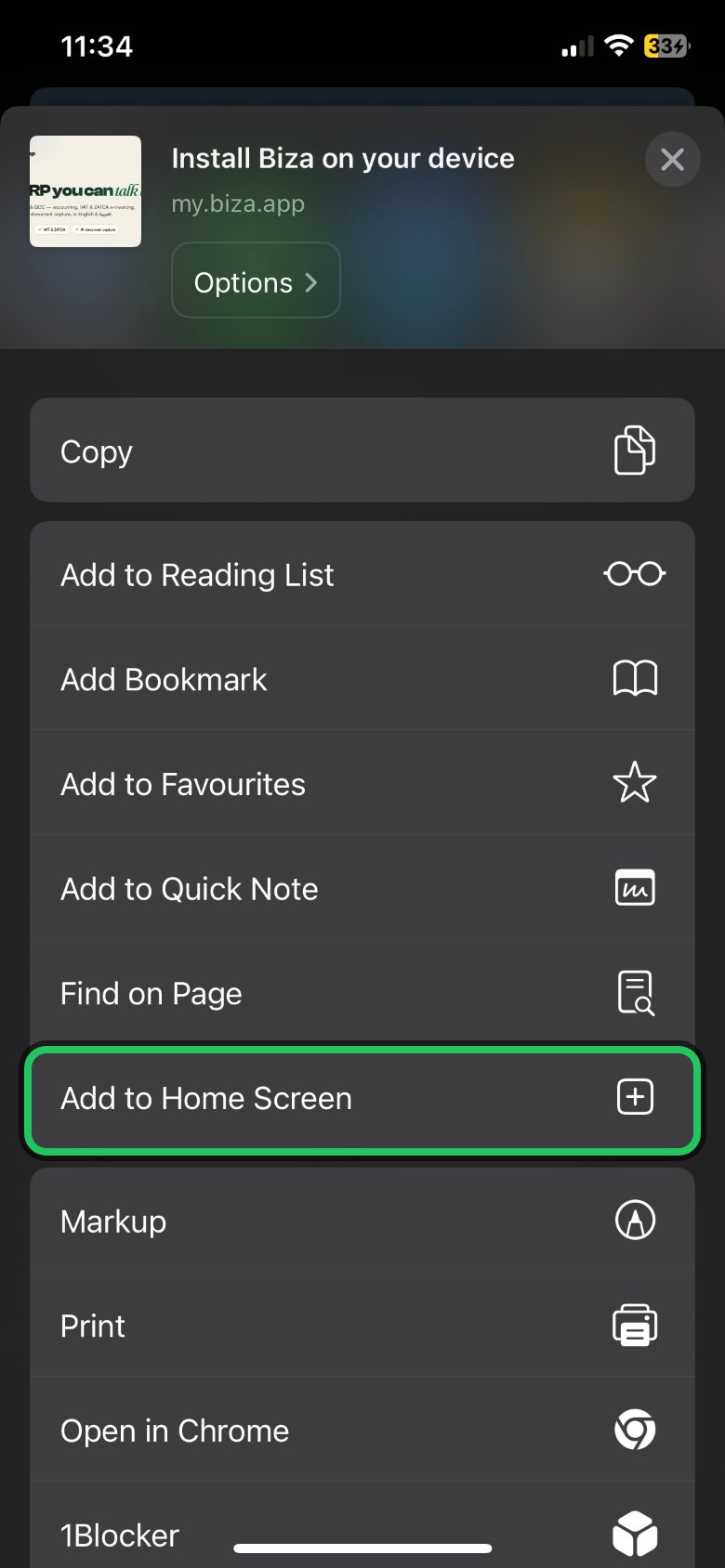
- iPhone: open the link in Safari. Tap the Share button in Safari's bar at the bottom of the screen (a square with an arrow pointing up, circled in the picture), choose Add to Home Screen in the list that opens (scroll down if you need to), then tap Add.
BIZA now has its own icon on your Home screen and opens full screen. Always open it from that icon, and sign in.
Switch the Daybook on. Open Settings → System → Modules and turn on Enable Daybook. If someone else manages BIZA for your company, ask them to do this.
Turn on simple mode. In the same place, under the Daybook, turn on Simple mode on phones. While the Daybook is open, your phone then shows one short bar at the bottom instead of three, and the entry form is shorter. The pictures in this manual are taken with simple mode on. It changes only the screen, never your figures, and you can turn it off again at any time.
Your cash and bank accounts are already there. Every new BIZA workspace starts with Petty Cash for cash and Checking Account - Main for the bank, so you can record your first entry straight away. If you keep money somewhere else, such as a second bank, add it the first time you need it with + New cash or bank account (section 8). To start from the money you have today, record it as I put money in (section 9).
You do not need to set up products, prices or tax to use the Daybook.
2. Open the Daybook
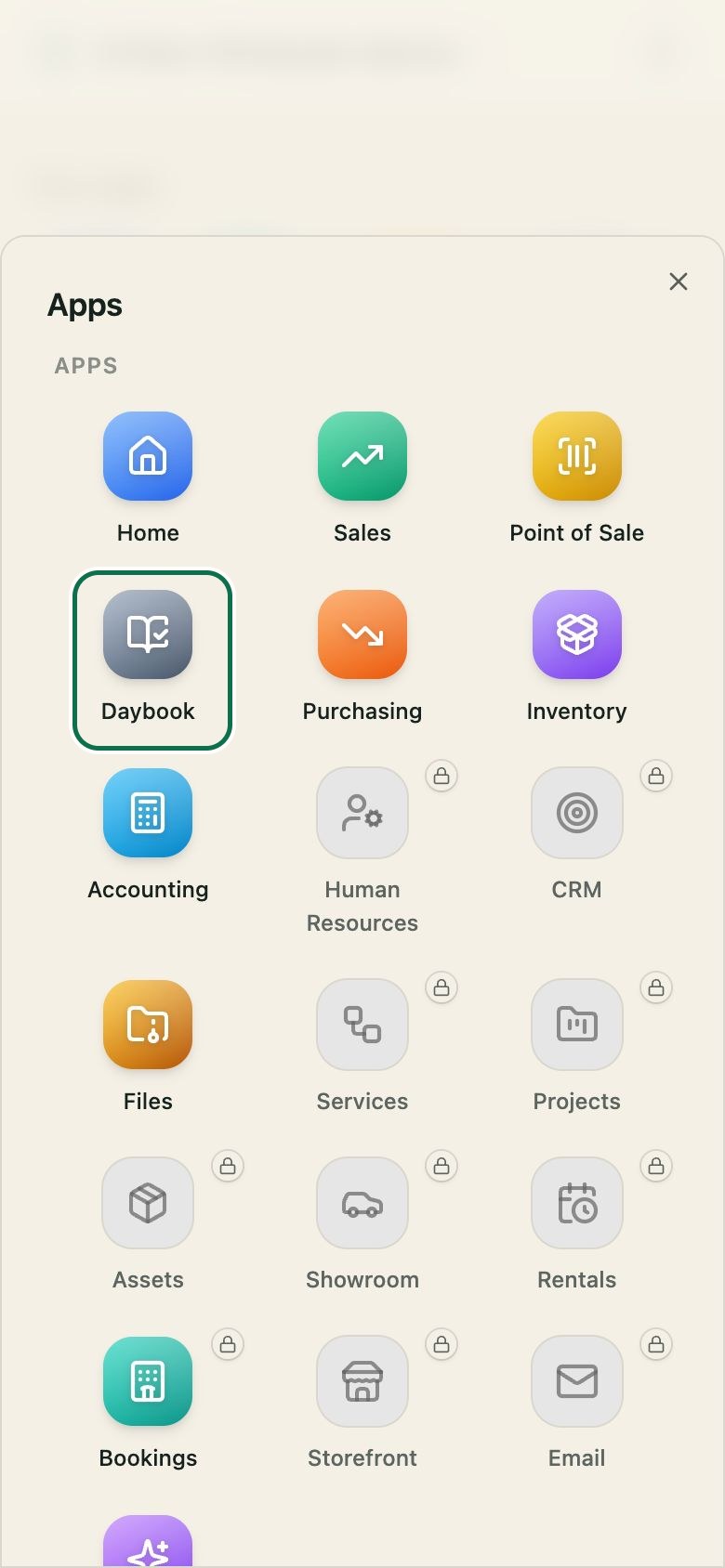
Tap Apps at the bottom of the screen, then tap Daybook.
With simple mode on, the Daybook has one bar at the bottom of the screen:
- Today: your day's money and entries (section 3).
- People: who owes you and whom you owe (section 12).
- Reports: profit and loss, cash and bank book and more (section 13).
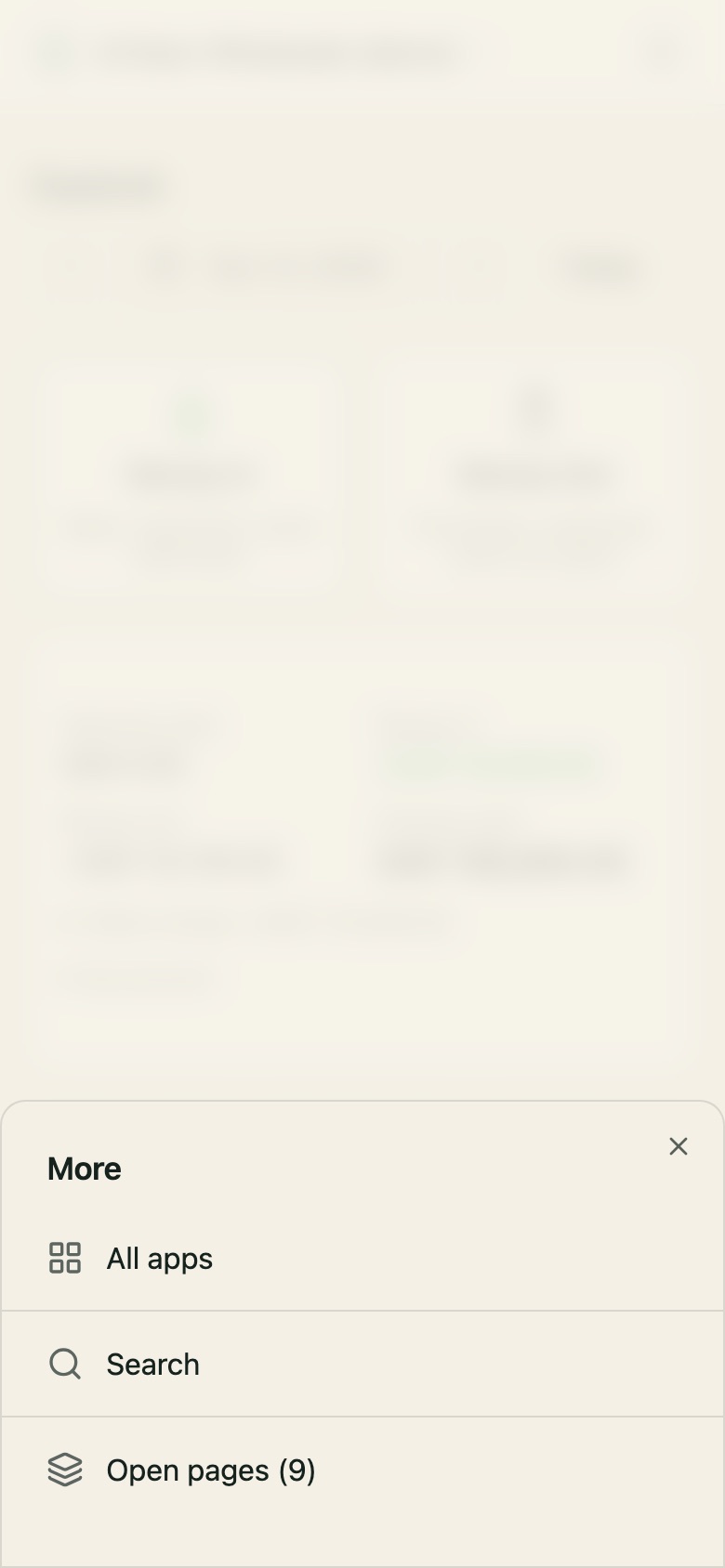
- Ask: opens Ask Biza, where you can type or say a question about your business in your own words. Tap Ask again to close it.
- More: everything else in BIZA: All apps, Search and your Open pages.
When you are filling in an entry, the green Save button sits at the end of the same bar, under your thumb.
3. The Today screen
Today is your day book page for one day. At the top are the two buttons you use most: Money In and Money Out (section 4). Under them are the day's figures.
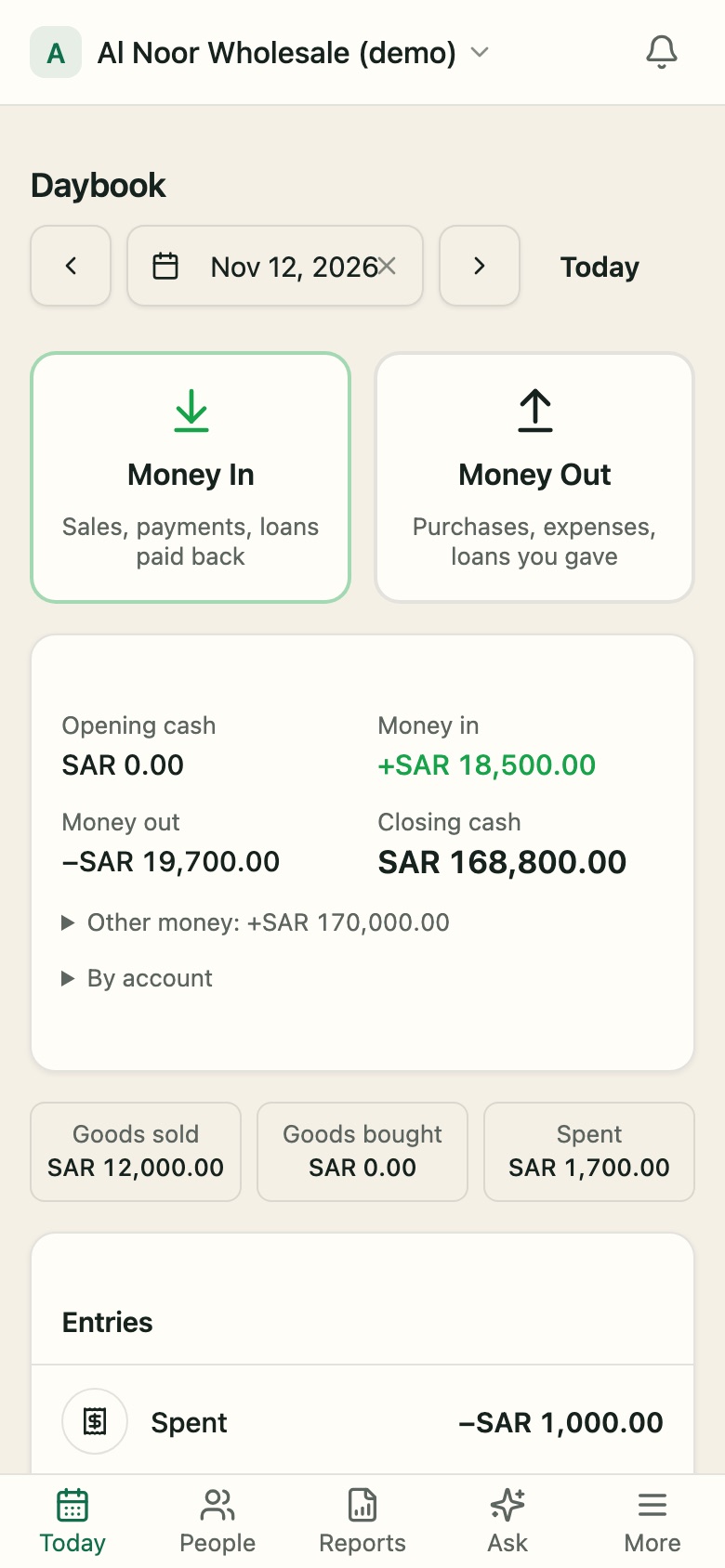
- Opening cash is all the money in your cash and bank accounts when the day began.
- Money in and Money out are what you recorded in the Daybook today.
- Closing cash is what you should have now. Count your cash drawer at the end of the day and compare it with this figure.
- Other money appears only when money moved outside the Daybook that day, for example an opening balance you entered, a transfer between accounts, or a sale made at the shop counter. Tap it to see what it means.
- By account shows the closing amount of each cash or bank account separately.
- Under the figures, Goods sold, Goods bought and Spent total the day's sales, purchases and expenses.
To look at another day, tap the ‹ and › arrows, or tap the date and pick one. Tap Today to come back.
4. Record what happened
Every entry starts with one question: did money come in or go out? Tap Money In or Money Out at the top of the Today screen. A short list slides up from the bottom; tap the one that fits. If you picked the wrong kind of entry, tap Change at the top of the form.
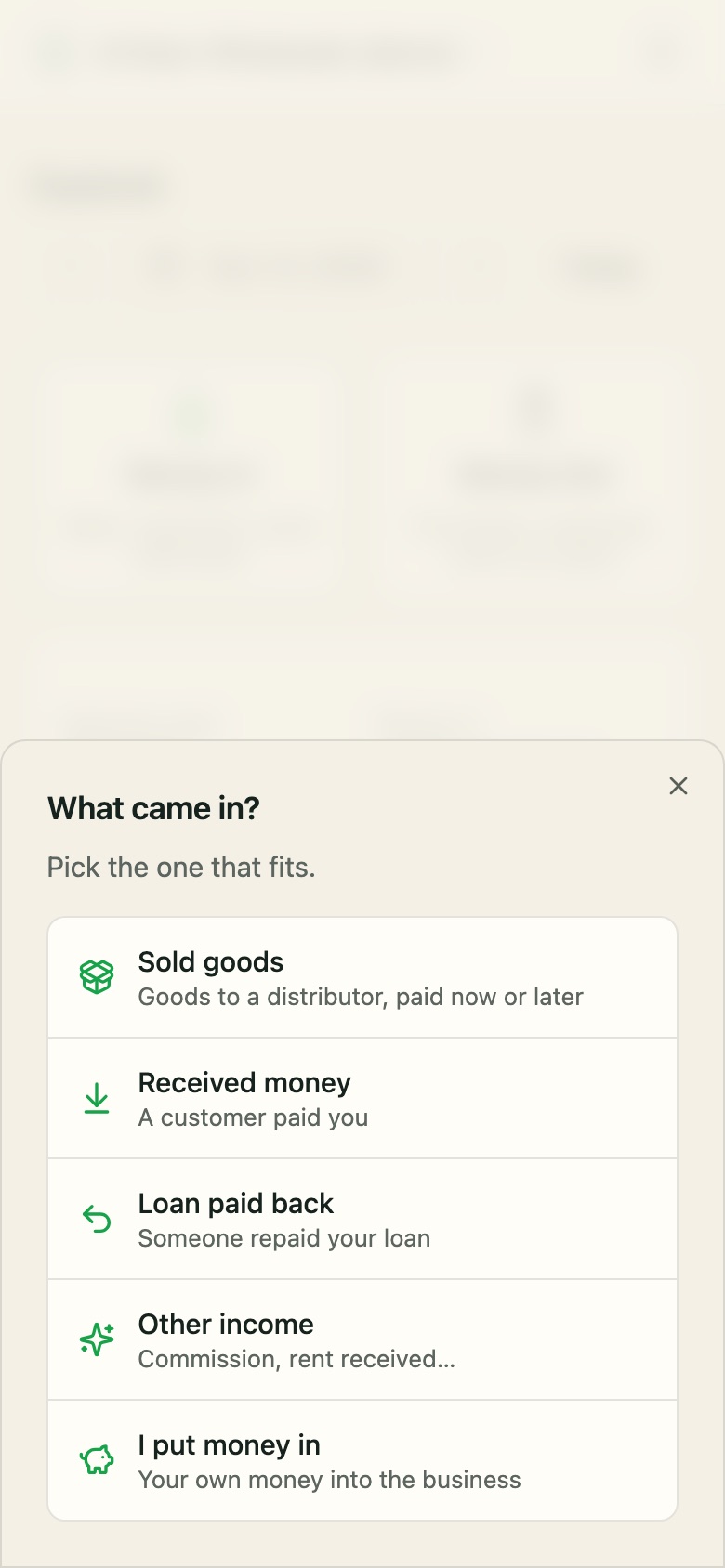
A sale or a purchase on credit is listed with the side the money will go, even if it is paid later.
Money In
| Button | Use it when… | Who |
|---|---|---|
| Sold goods | you sold goods to a distributor or customer, paid now or on credit | the customer |
| Received money | a customer paid you | the customer |
| Loan paid back | someone repaid money you lent them | the person |
| Other income | you earned money that is not a sale: commission, rent received | anyone (optional) |
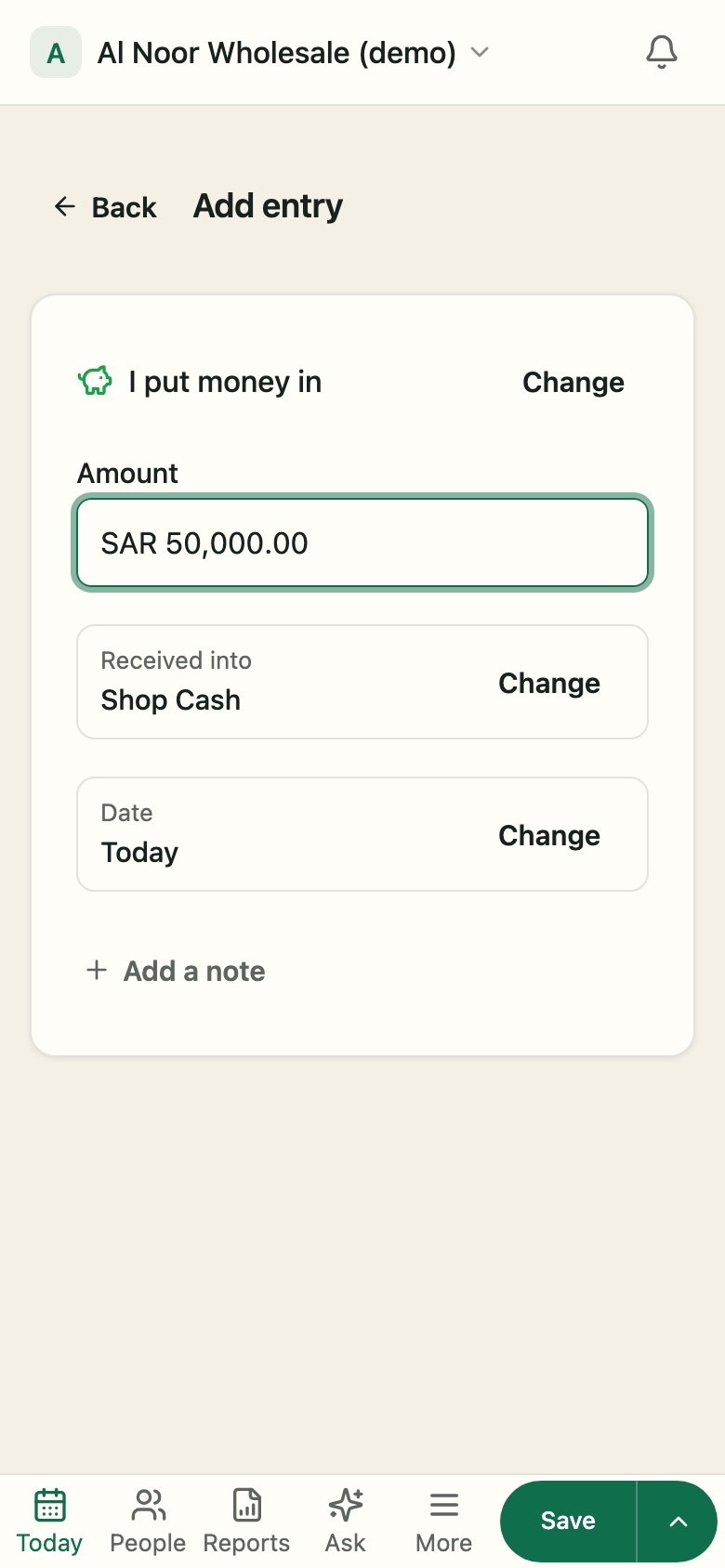
| I put money in | you put your own money into the business, for example the cash you start with | nobody |
Money Out
| Button | Use it when… | Who |
|---|---|---|
| Bought goods | you bought stock to sell, paid now or on credit | the supplier |
| Paid supplier | you paid a supplier what you owed | the supplier |
| Spent | you paid for something the business uses: rent, fuel, wages, tea | the supplier (optional) |
| Gave a loan | you lent money to someone | the person |
| I took money out | you took business money for home or yourself, not for a business cost | nobody |
Every entry asks for the same few things, in the same order:
- How much and who: you type these each time.
- Which cash or bank account the money went through: shown as one line, such as Paid from Shop Cash, with Change next to it. BIZA remembers the account you used last, one for money in and one for money out, so most of the time you do not touch it. A sale or a purchase starts as Not paid yet.
- The date: shows Today. Tap Change to pick another day.
- A note: tap + Add a note to write one.
5. Sold goods to a distributor
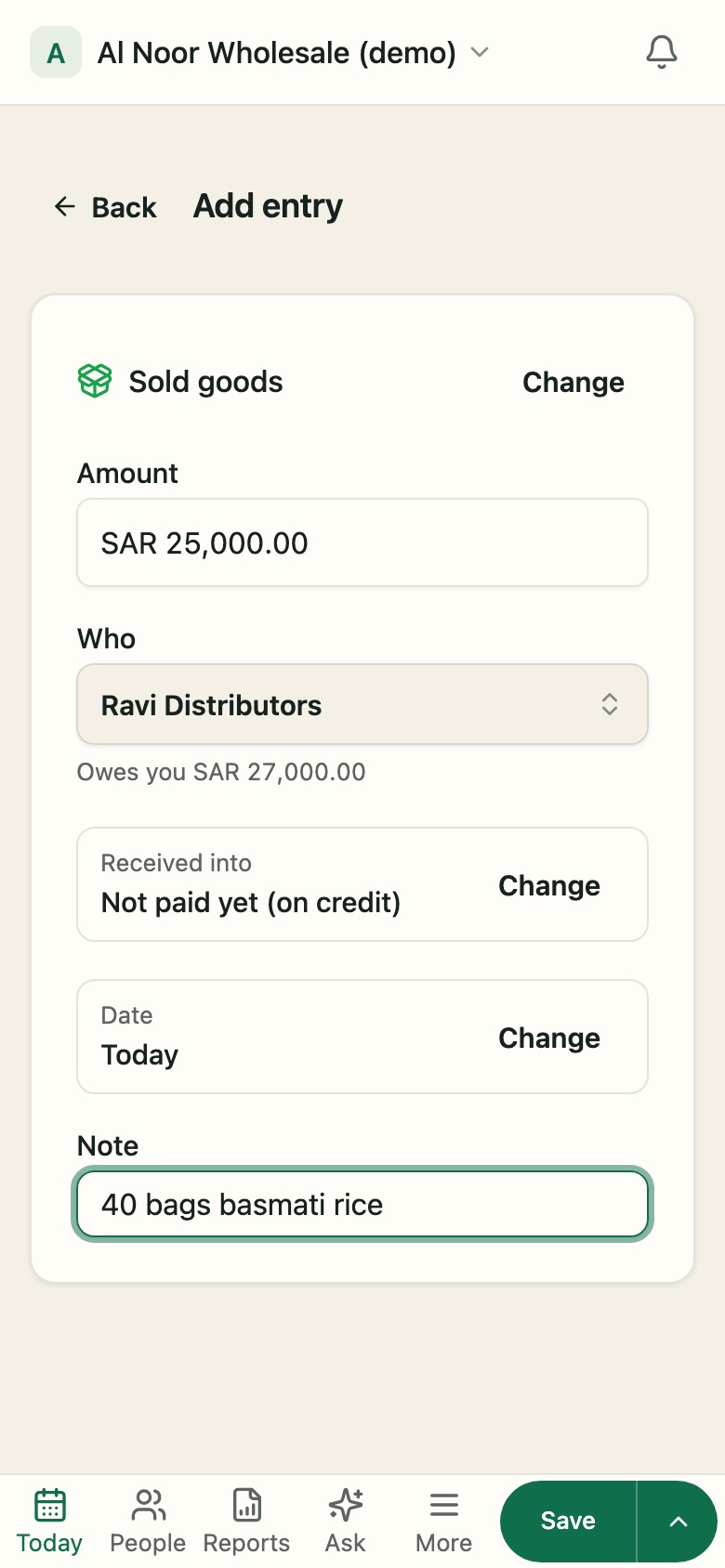
- Tap Money In, then Sold goods.
- Type the Amount, for example
25000. - Under Who, tap the box and start typing the name. Tap the person when they appear. Under the name, BIZA shows what they already owe you.
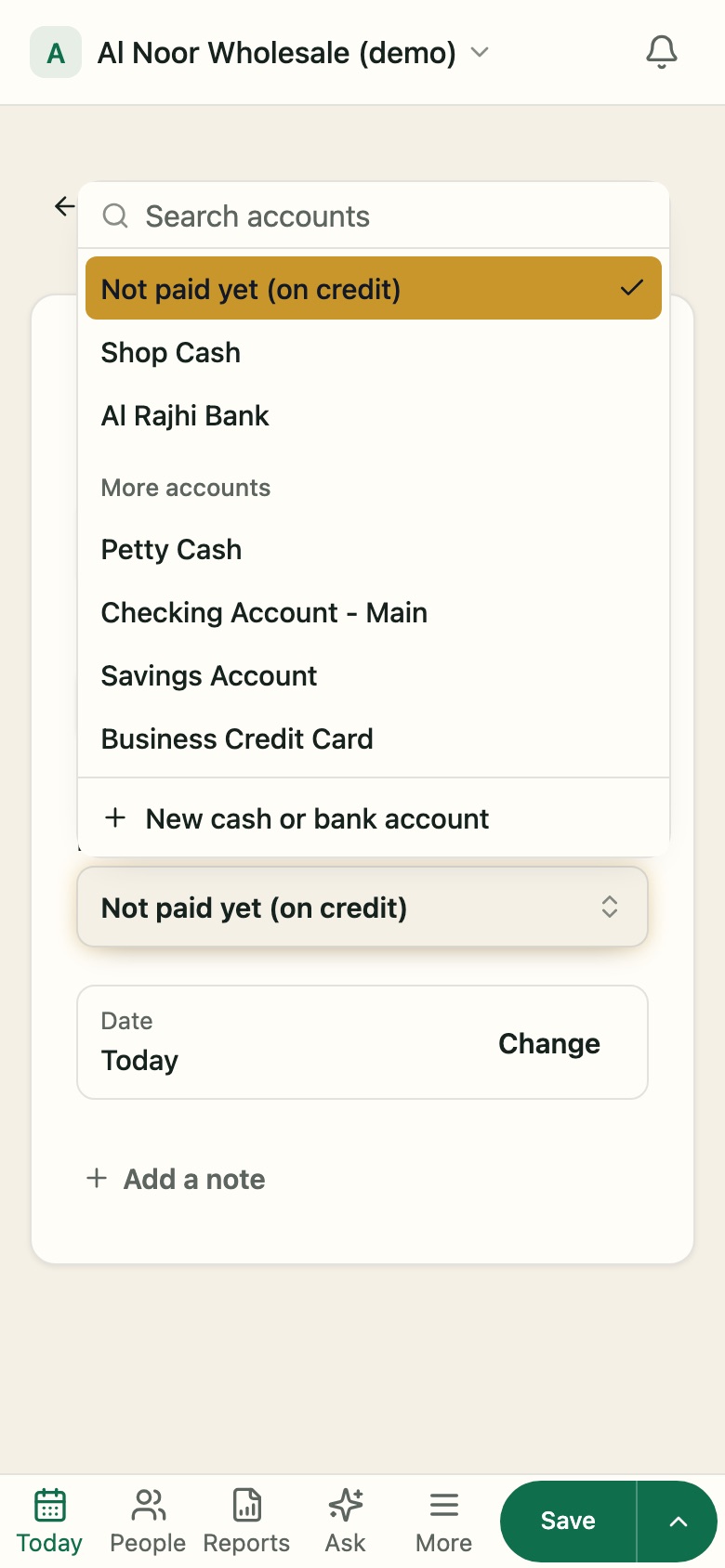
- Received into shows Not paid yet (on credit). Leave it if they will pay later. If they paid on the spot, tap Change and choose the cash or bank account the money went into.
- Tap + Add a note so you remember what it was, for example
40 bags basmati rice. - Tap Save at the bottom.
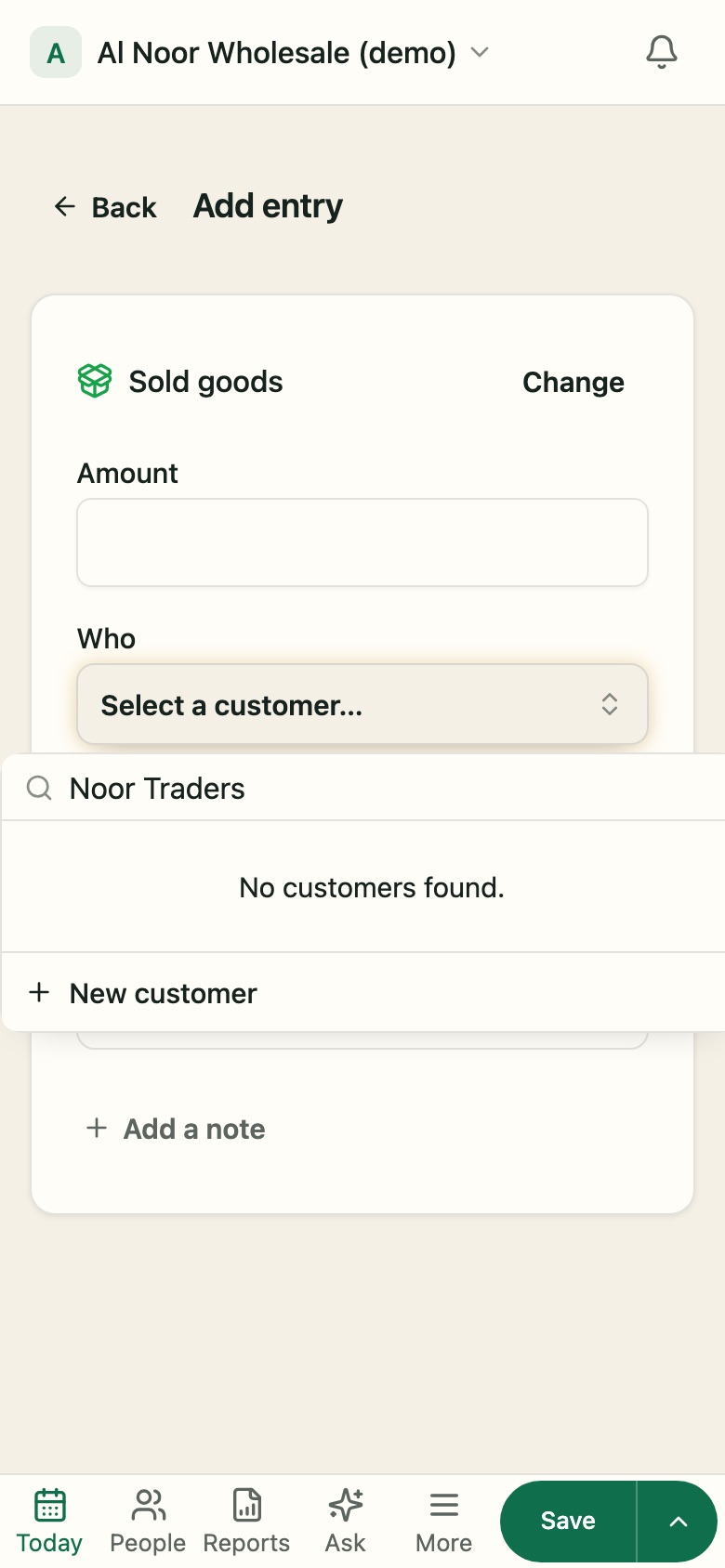
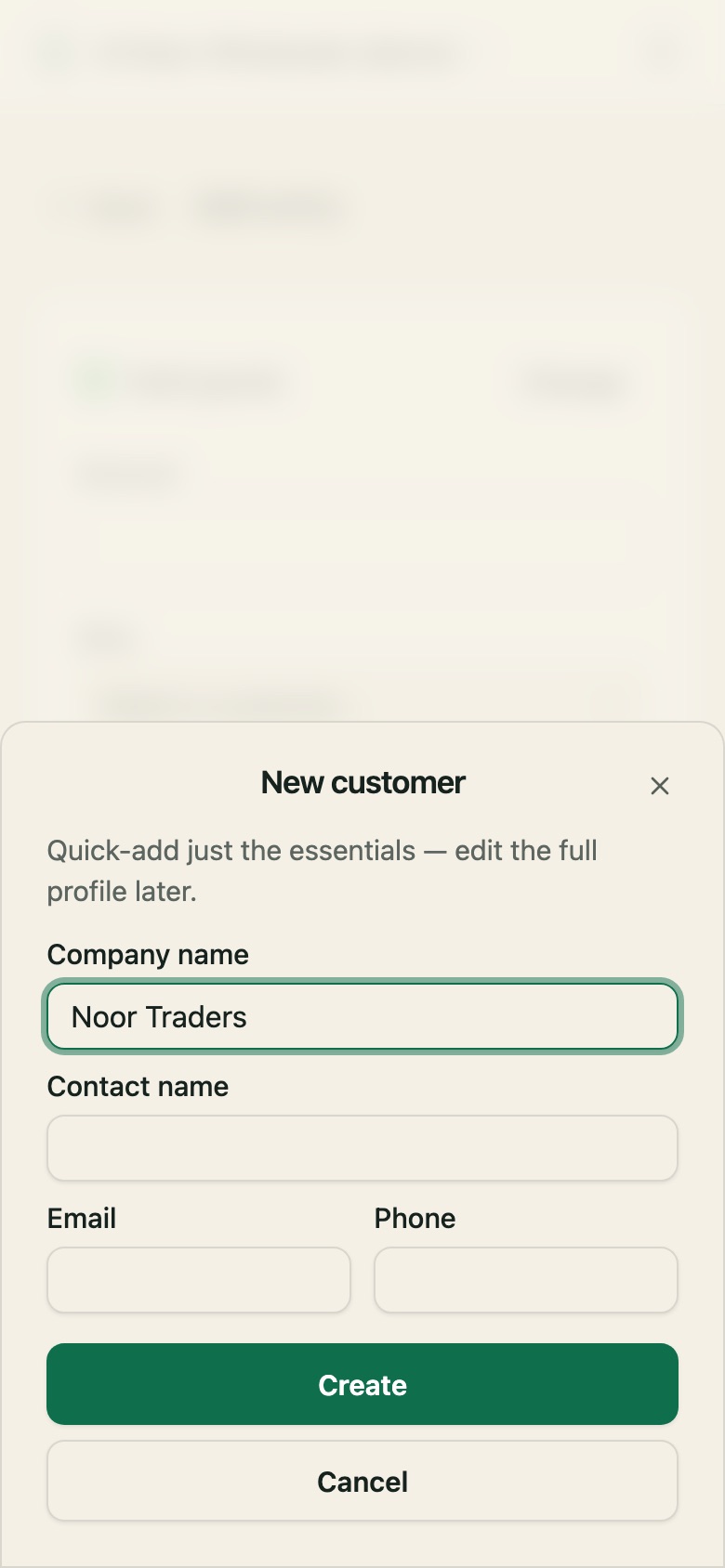
A new distributor? Type their name in Who. When BIZA cannot find them, tap New customer, check the name and tap Create. You can add a phone number now or later.
6. Received money
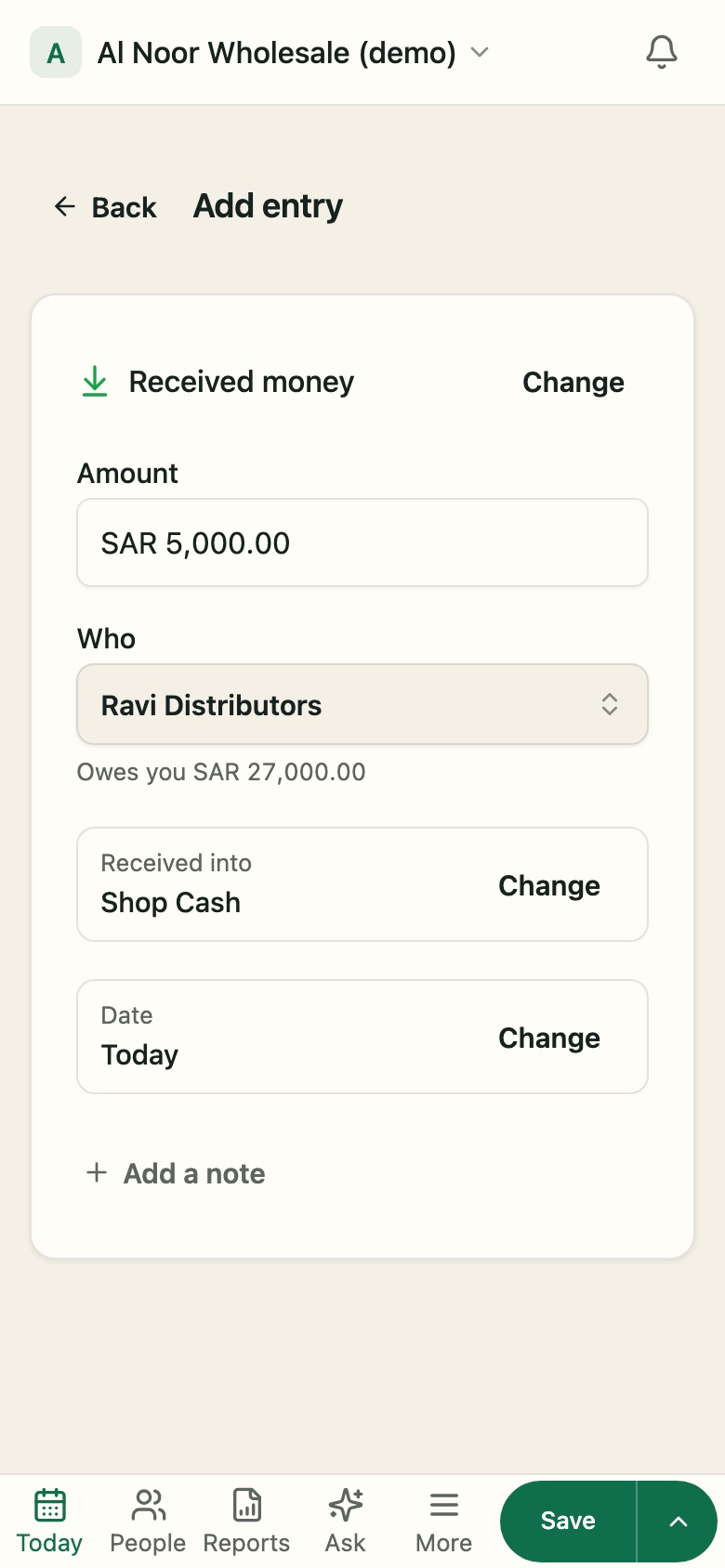
When a distributor pays you, tap Money In → Received money, type the amount and pick who paid. Received into shows the account you used last time; if the money went somewhere else, tap Change and pick your cash drawer or your bank. Tap Save.
BIZA takes the payment off their oldest unpaid goods first, so you never have to match payments to bills yourself. If they pay more than they owe, the extra is kept as money paid in advance and used against their next goods.
7. Bought goods and paid a supplier
Money Out → Bought goods works like Sold goods, the other way round: type the amount, pick the supplier (or create one with New supplier), and leave Not paid yet if you will pay later, or tap Change and choose the account you paid from.
When you pay the supplier later, tap Money Out → Paid supplier, pick the supplier, type the amount and the account you paid from. BIZA shows what you owe them before you save, and it will not let you pay more than that by mistake.
8. Spent: everyday expenses
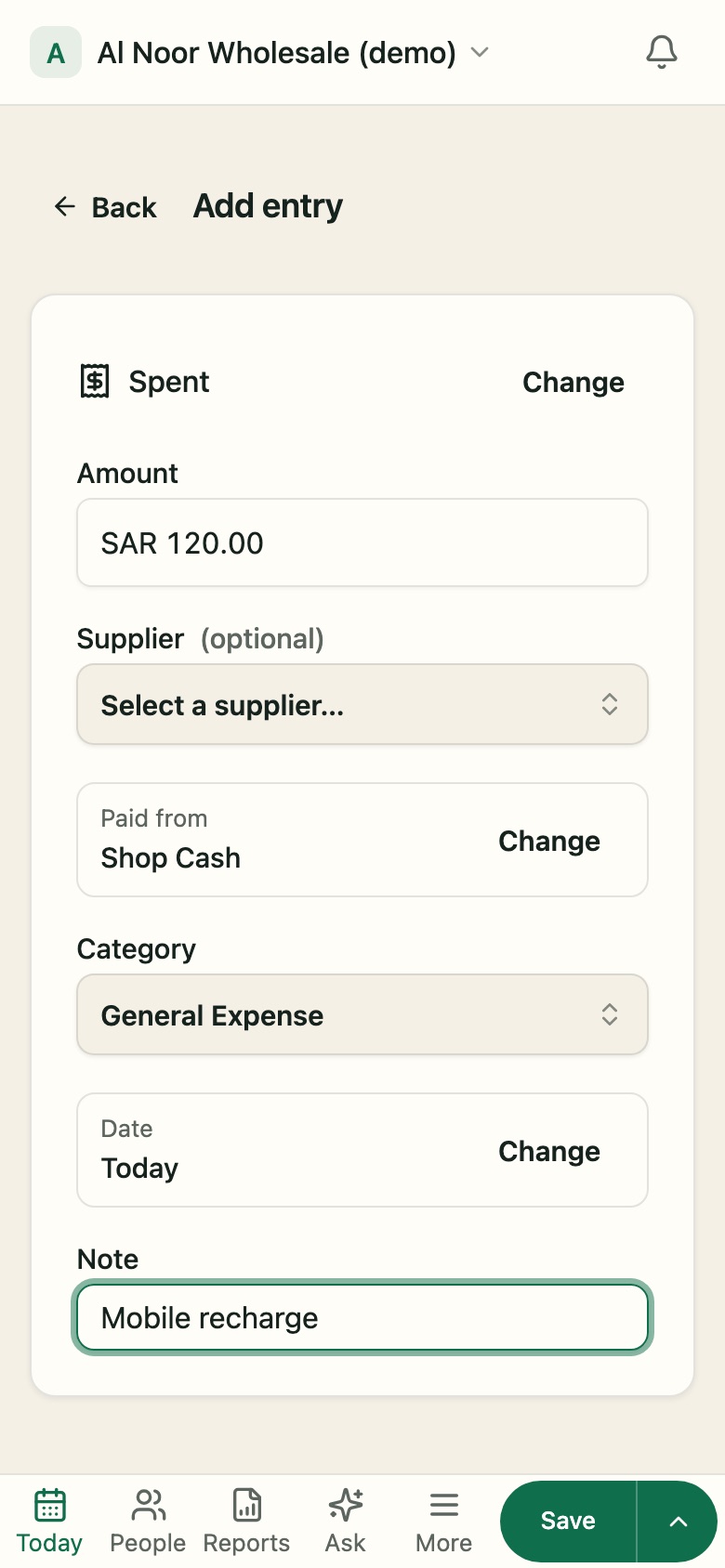
Tap Money Out → Spent for anything the business pays for: rent, fuel, electricity, wages, tea, phone recharge.
- Type the Amount.
- Leave Supplier empty for small daily spending. Choose a supplier only if it is a bill you will pay later.
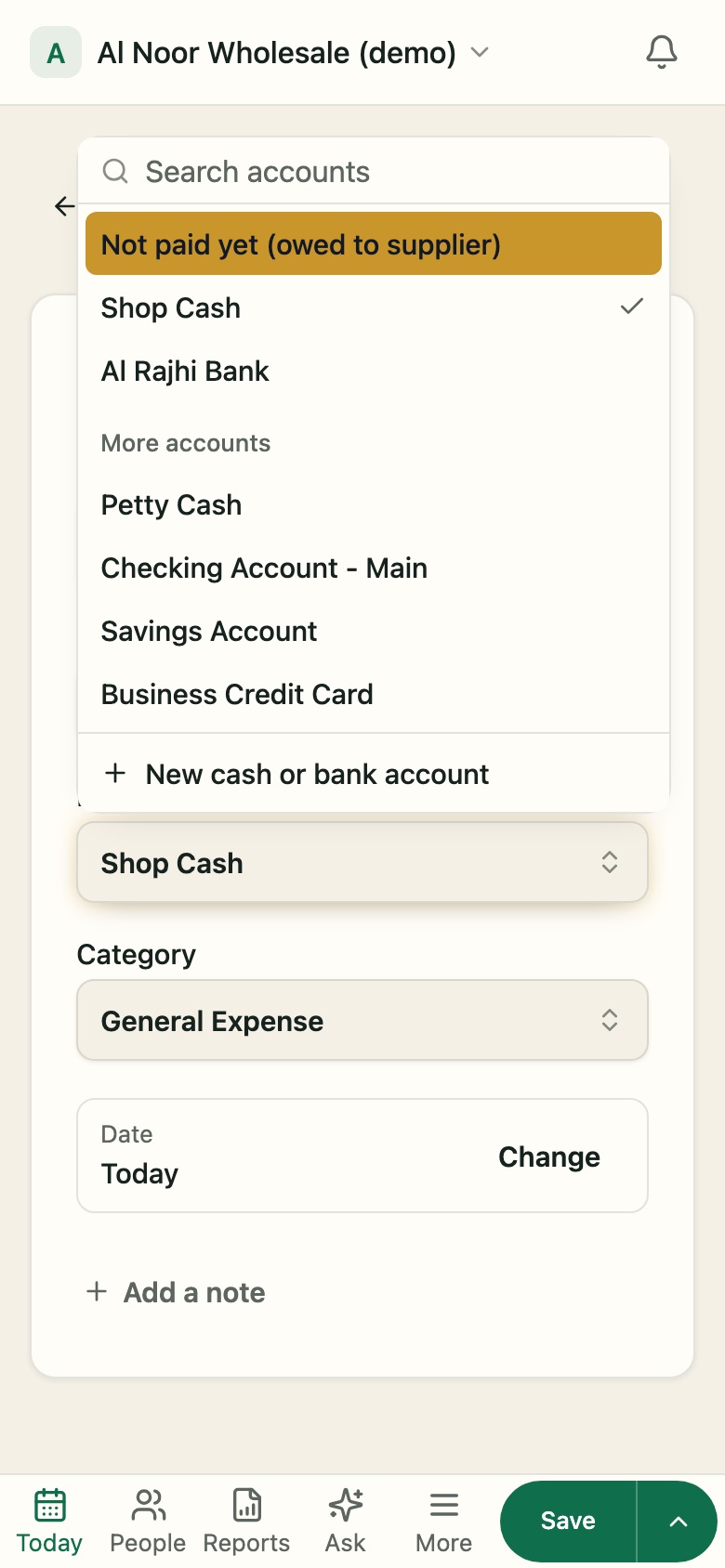
- Paid from: the cash or bank account the money came from. It shows the one you used last; tap Change to pick another. Accounts you have never used are listed at the bottom, under More accounts.
- Category: the kind of expense, such as rent or fuel. BIZA uses this to sort your expenses in the profit and loss report.
- Tap + Add a note, write what it was, and tap Save.
Your expenses also appear in Accounting → Expenses, where your accountant can see them.
A new account or a new category, without leaving the entry
If the account or category you need is not in the list, add it on the spot. Your entry stays as you typed it.
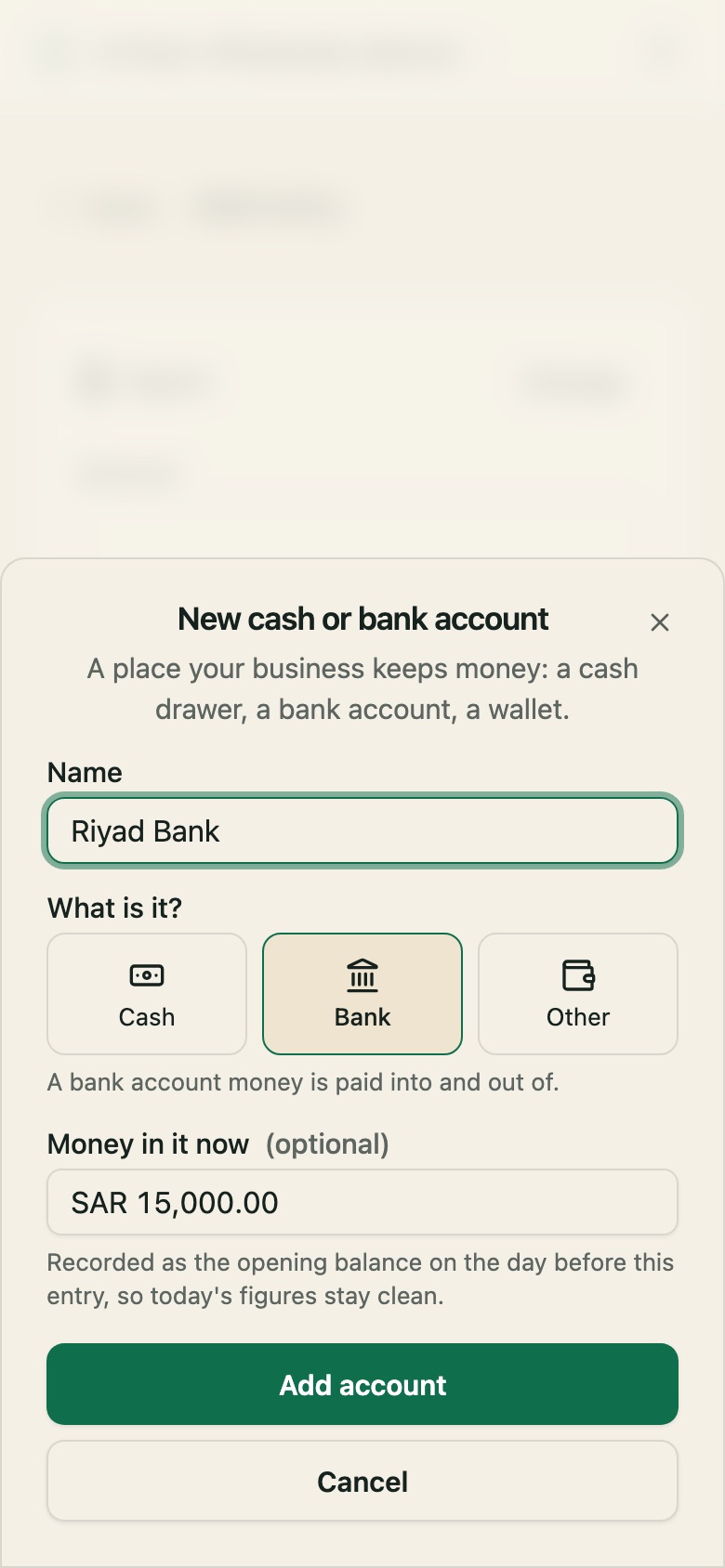
A new cash or bank account. Tap Change next to Paid from (or Received into), open the list, and tap + New cash or bank account at the bottom of the list. Type a name, choose Cash, Bank or Other (for cheques in hand or a payment wallet), and, if you like, type the money in it now. Tap Add account. BIZA files the account in the right place in your books and picks it for this entry. The money in it is recorded as its opening balance on the day before the entry, so today's in and out stay clean.
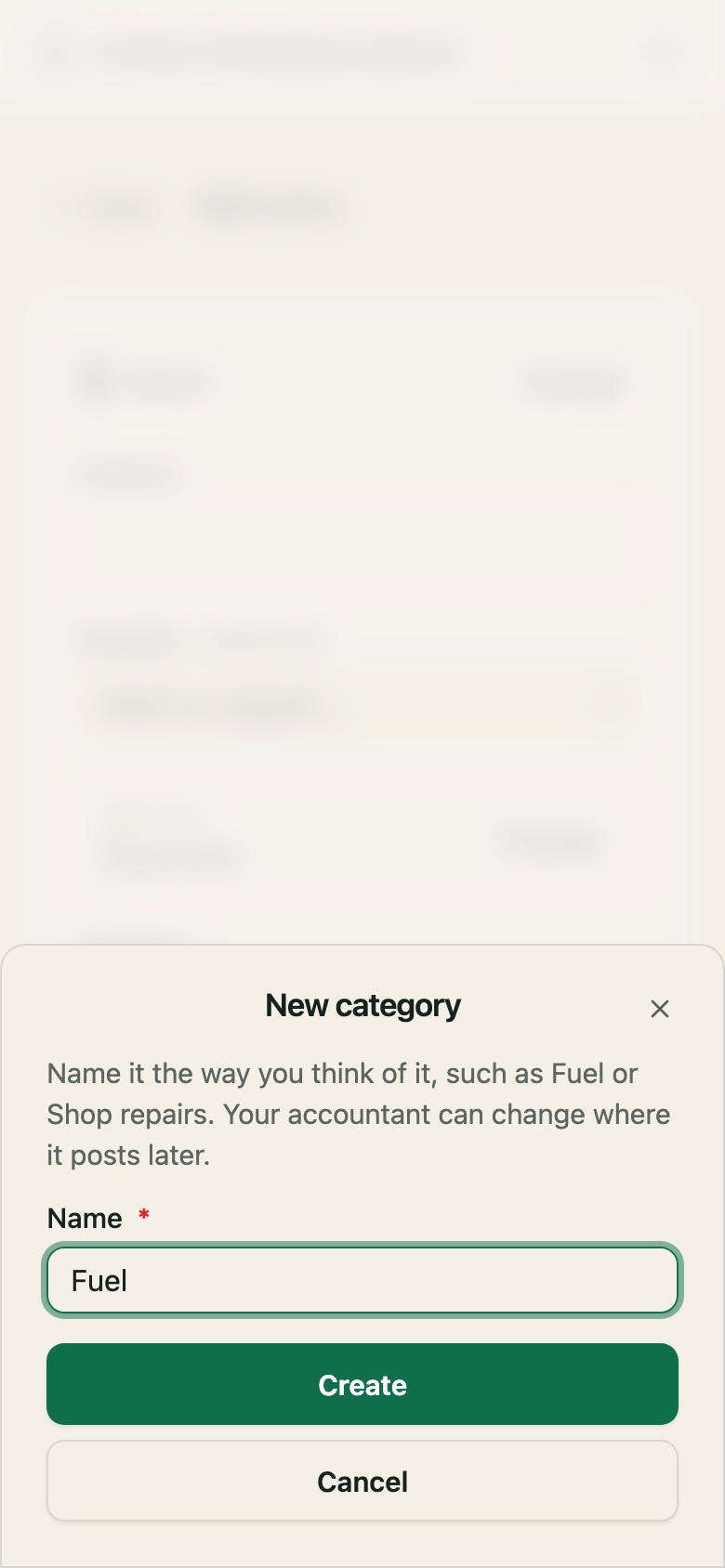
A new category. Open Category, tap + New category, type a name such as Fuel or Shop repairs, and tap Create. Your spending is then sorted under that name in Accounting → Expenses. In the profit and loss report, new categories are added together in your general expenses line; if you want one shown as its own line, ask your accountant to give it its own account under Expenses → Categories.
9. Loans, and your own money
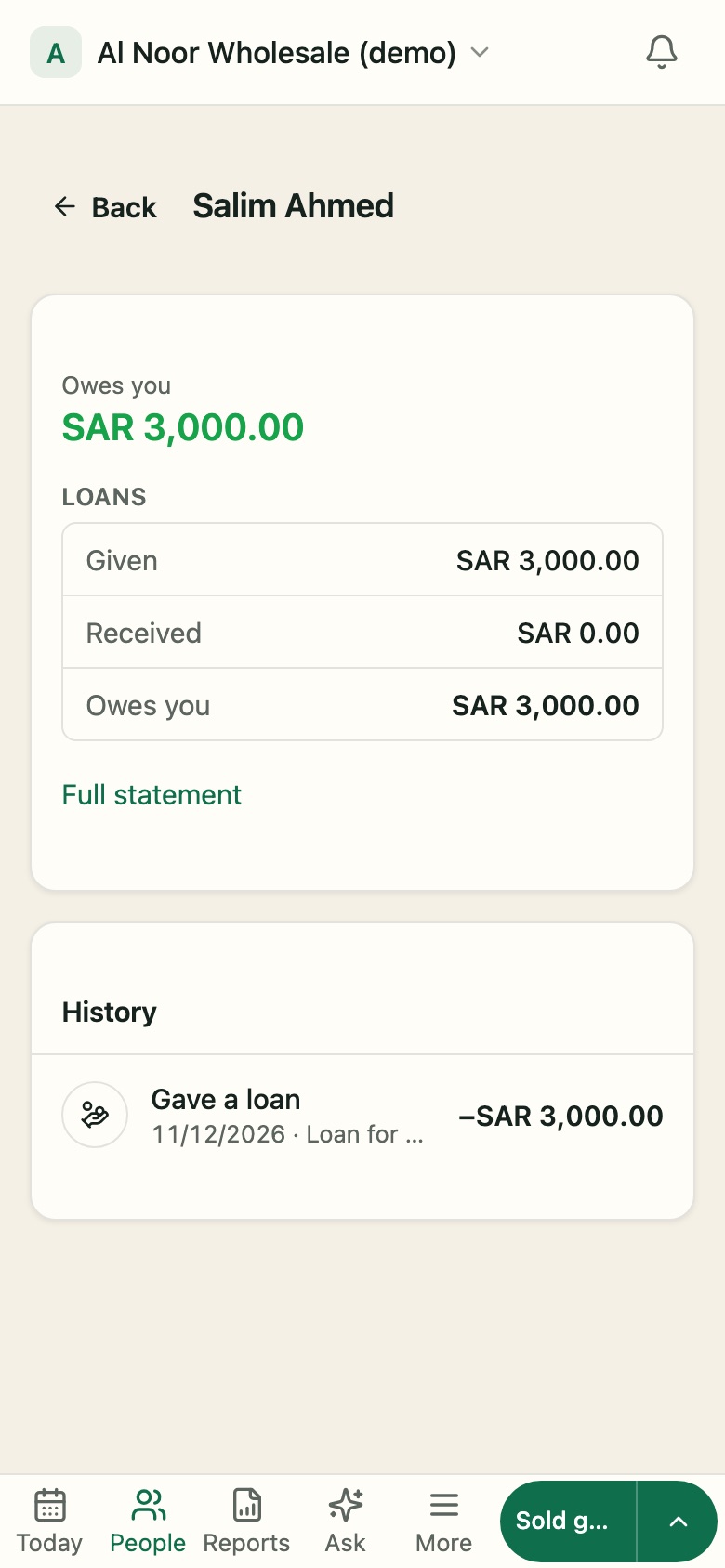
Use Gave a loan when you lend money to someone, and Loan paid back when they repay part or all of it. Pick the person (create them with New customer if needed), type the amount and the account the money went through.
BIZA keeps each person's loan separate from the goods they buy from you, and it will not accept a repayment larger than what they still owe.
Your own money. When you put your own money into the business, for example the cash you start the shop with or a top-up from your savings, tap Money In → I put money in. When you take money out for home or for yourself, tap Money Out → I took money out. Type the amount and pick the cash or bank account. Neither needs a person.
Keep these apart from Spent: money you take for yourself is not a business cost, so recording it as an expense would make your profit look smaller than it is.
10. The day's entries
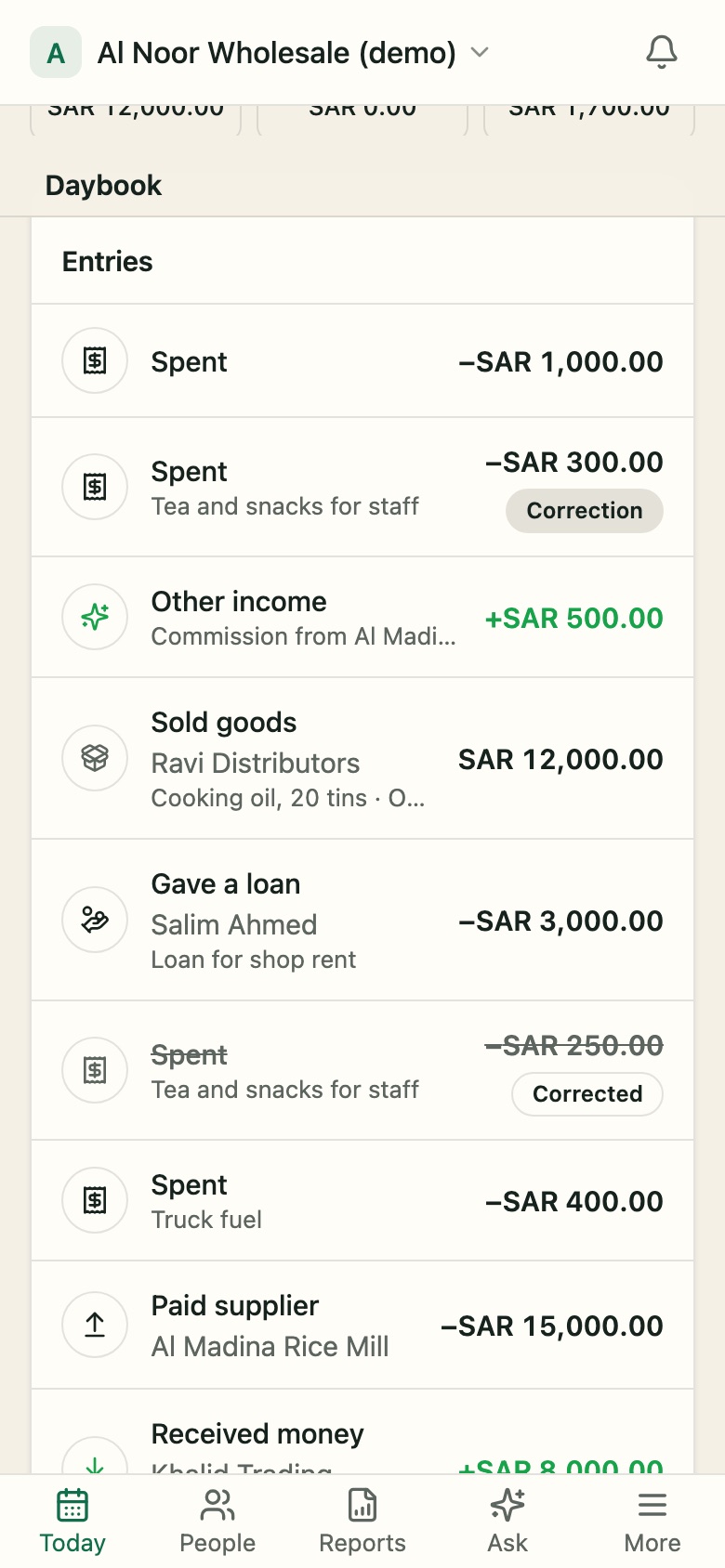
Scroll down on Today to see every entry of the day, newest first. Money coming in shows with a green +, money going out with a −, and goods on credit with On credit and no sign (no cash moved).
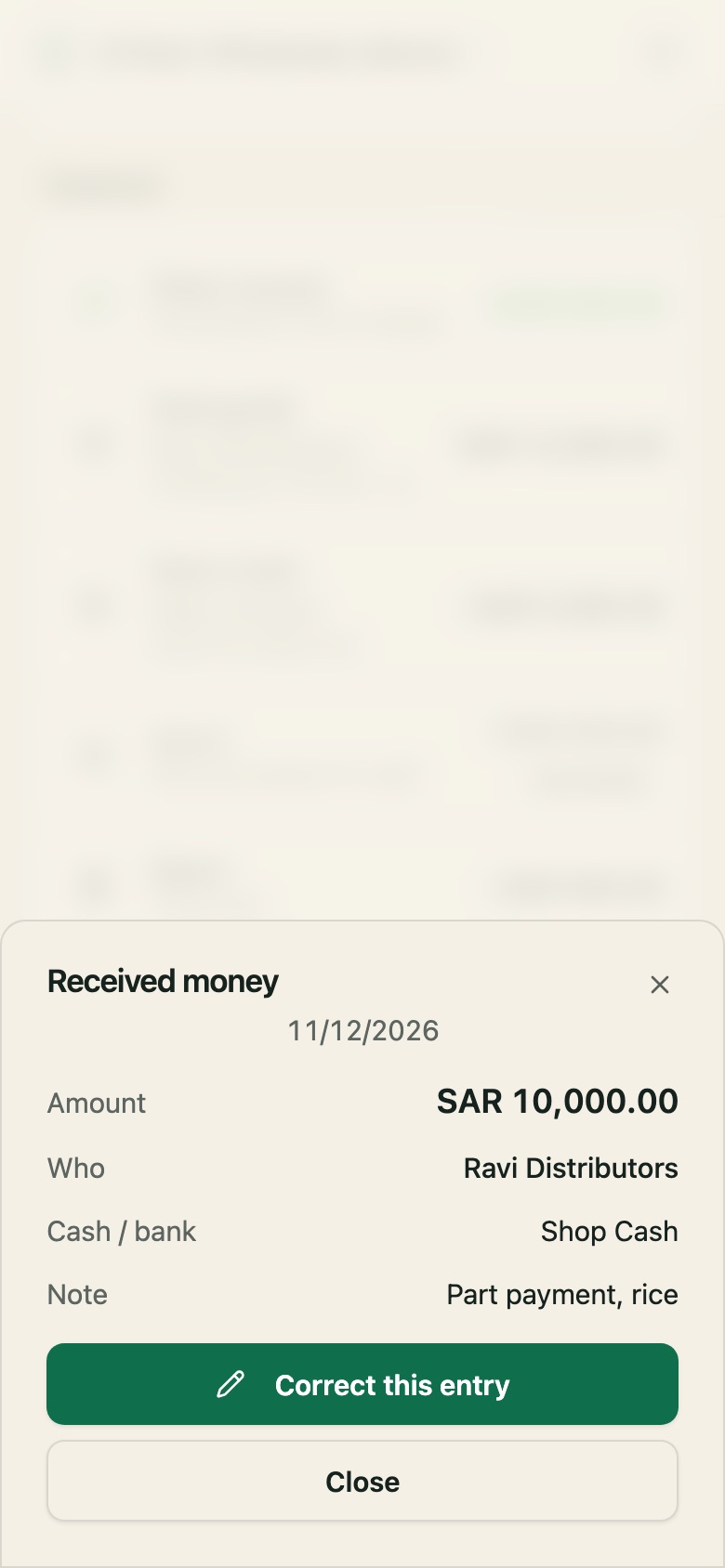
Tap any entry to see its details: the amount, who, the cash or bank account, your note, and the document BIZA created in your books.
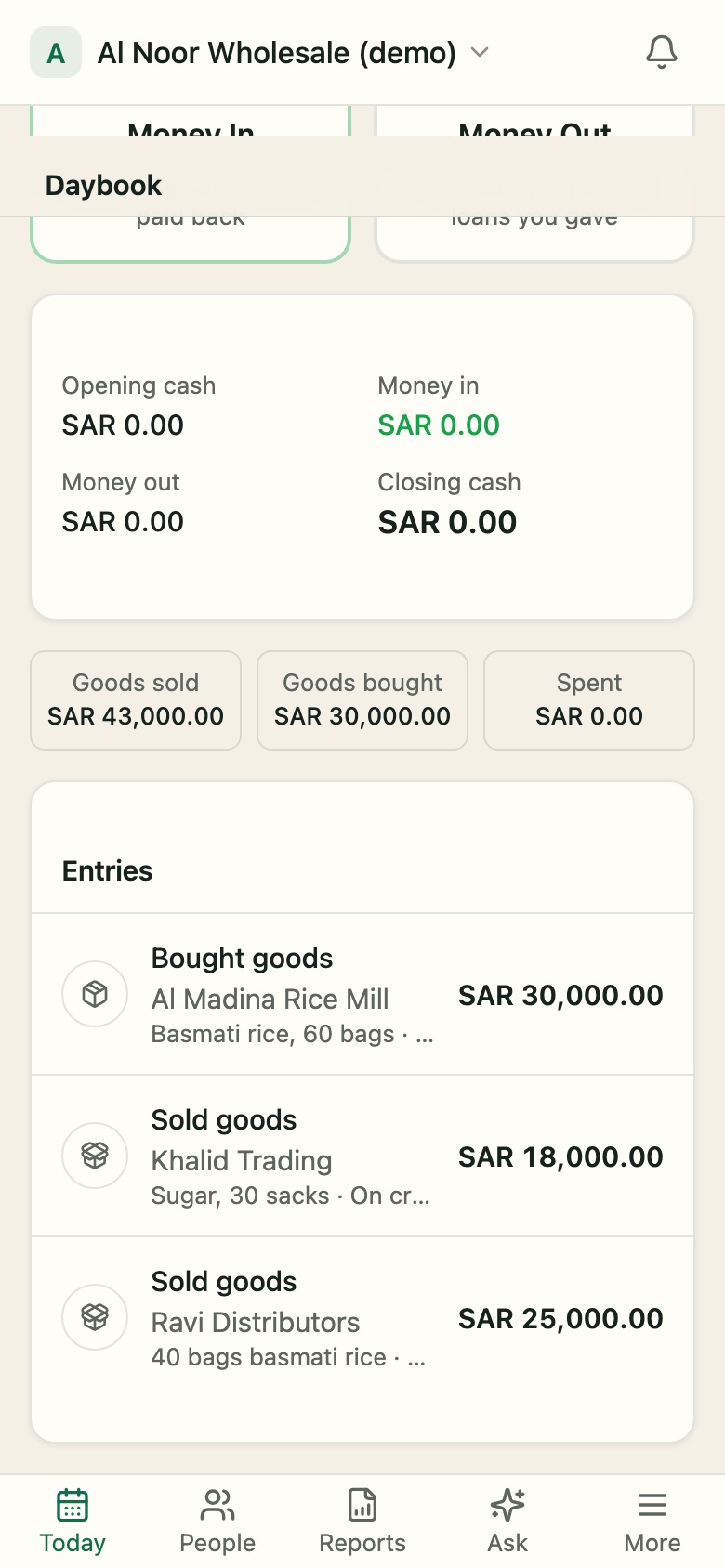
Here is an earlier day, opened with the ‹ arrow. The goods sold and bought on credit appear in the day's totals but not in its cash, because no money moved.
11. Fix a mistake
Typed the wrong amount, picked the wrong person, or recorded something twice? Nothing is ever deleted in BIZA, so your history stays complete. Instead, you correct the entry and BIZA reverses the old one in your books.
To correct an entry:
- On Today, tap the wrong entry.
- Tap Correct this entry.
- Change what is wrong, for example the amount.
- Tap Save.
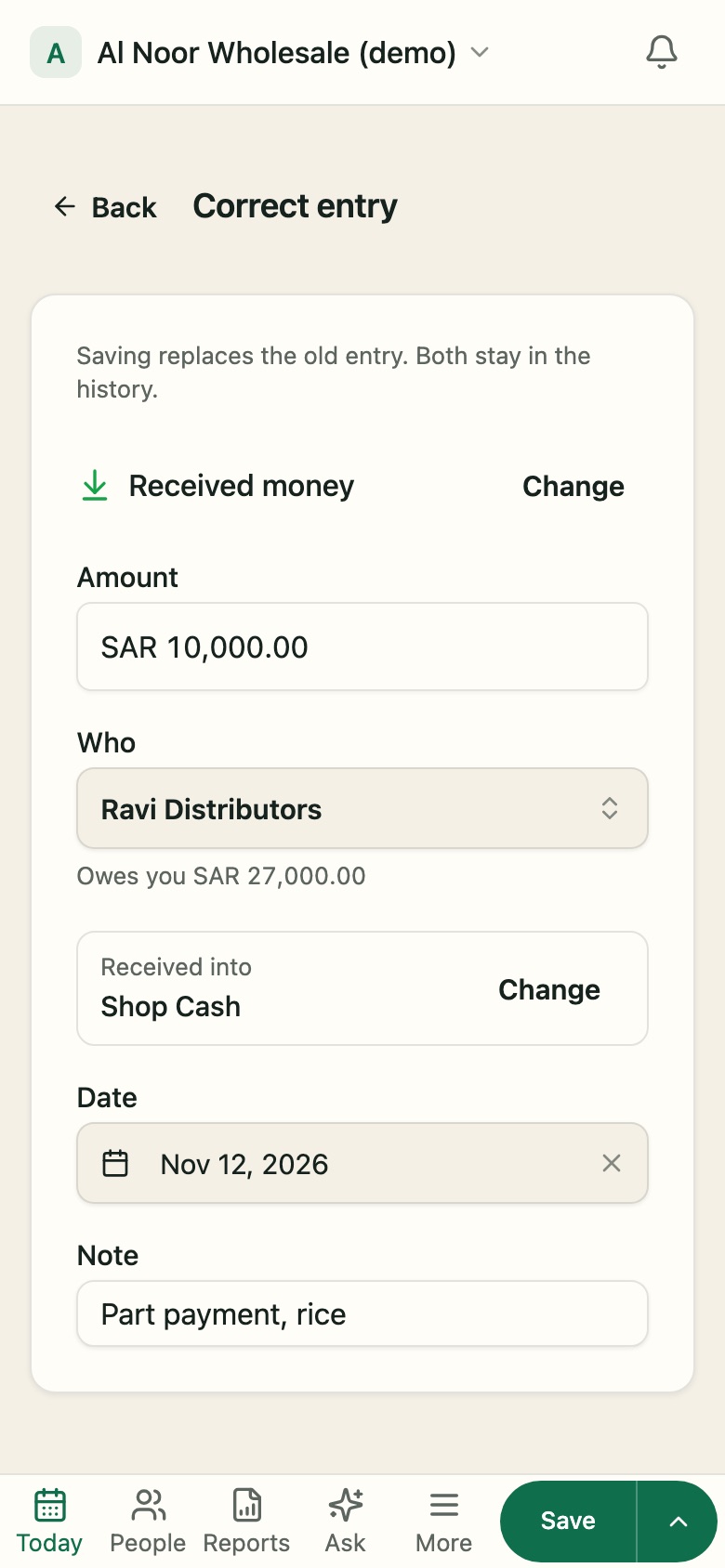
The old entry stays in your list, struck through and marked Corrected. The new one is marked Correction. Your totals count only the new one.
To cancel an entry completely (for example, you recorded it twice): open it, tap Correct this entry, then tap the arrow ⌃ next to Save in the bar at the bottom and choose Cancel this entry. Confirm, and it is reversed.
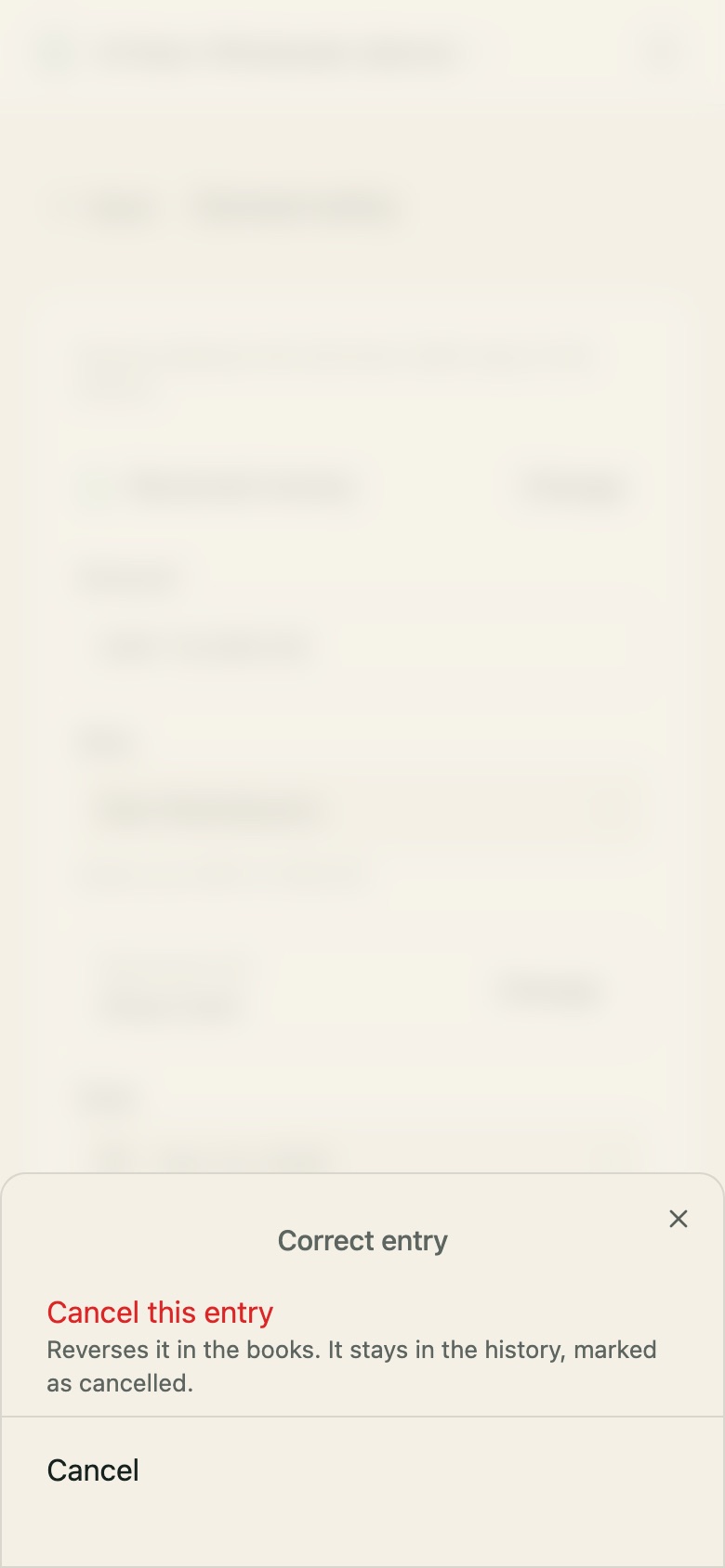
Good to know: if you correct goods that a customer has already partly paid for, BIZA moves their payment to the corrected entry for you. Your customer's balance stays right.
12. People: who owes you, whom you owe
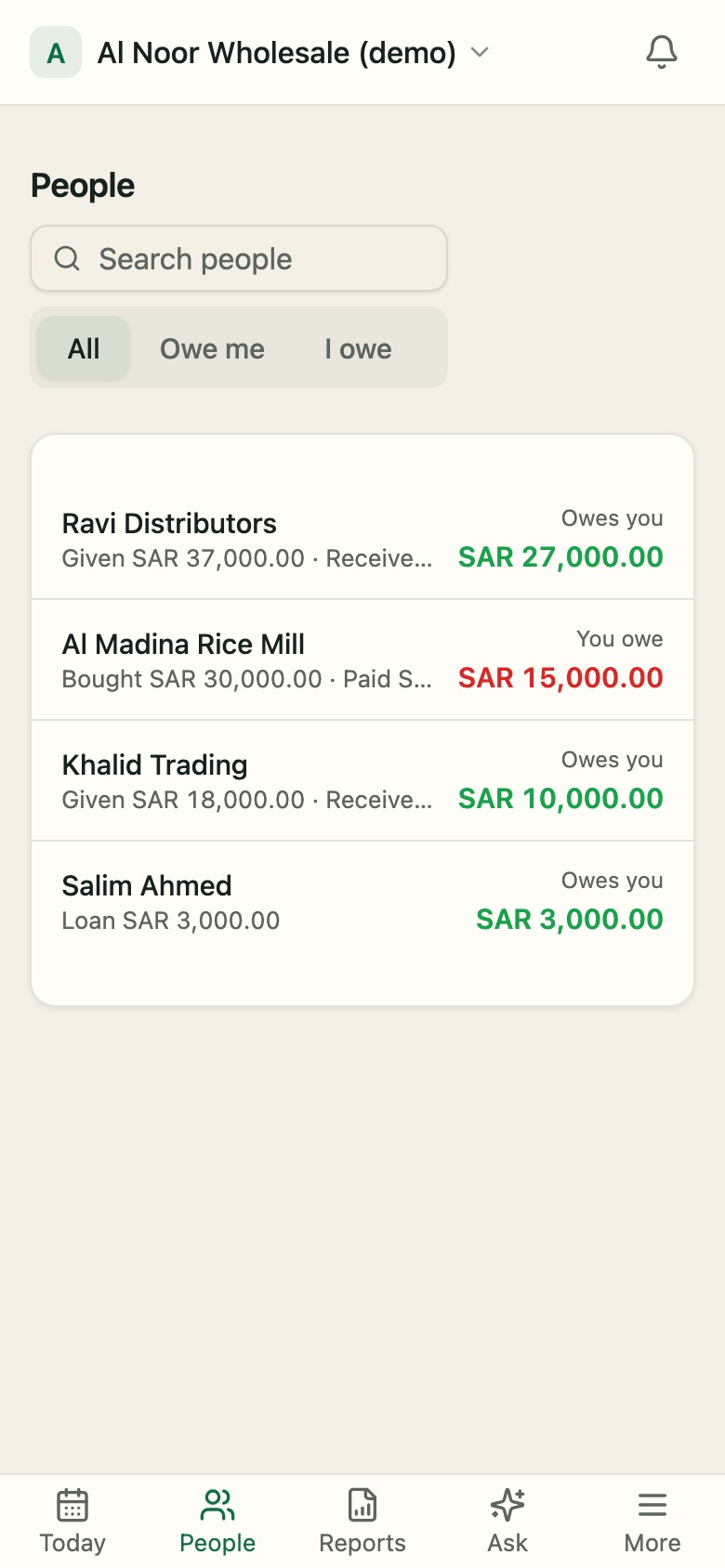
Tap People at the bottom. Everyone you deal with is here: distributors, borrowers and suppliers, with the amount still open in large type.
- Owes you (green): what a distributor or borrower still has to pay you.
- You owe (red): what you still have to pay a supplier.
- The small line shows what you gave and what came back, or what you bought and what you paid.
Use Owe me and I owe at the top to see only one side, or search by name.
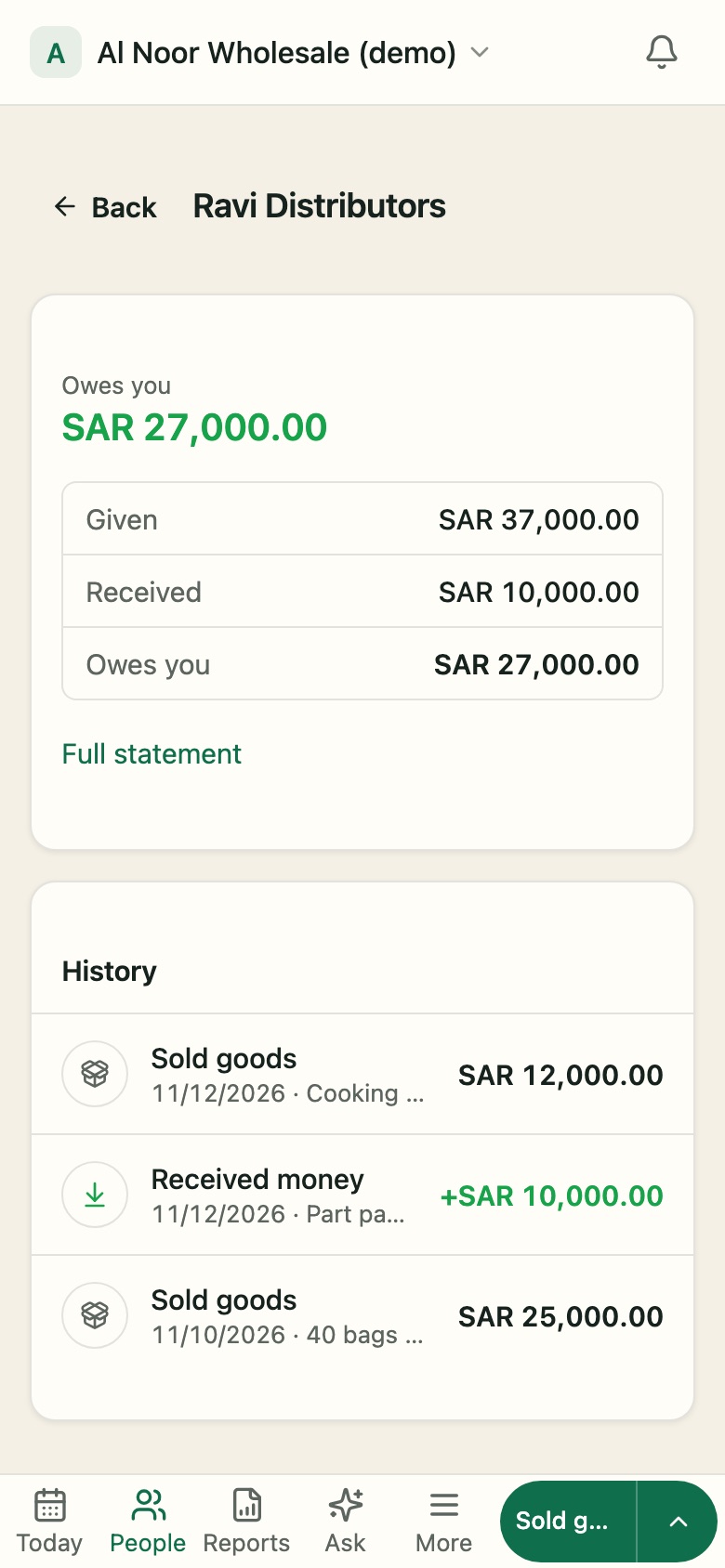
Tap a person to see everything you have recorded with them, newest first. The buttons at the bottom record the next entry with that person already filled in: Sold goods, Received money, Gave a loan or Loan paid back for a customer; Bought goods or Paid supplier for a supplier. Full statement opens their complete statement of account, which you can share.
13. Reports
Tap Reports for the reports your books produce from your Daybook entries. Each opens in its own tab, so you can come back to the Daybook easily.
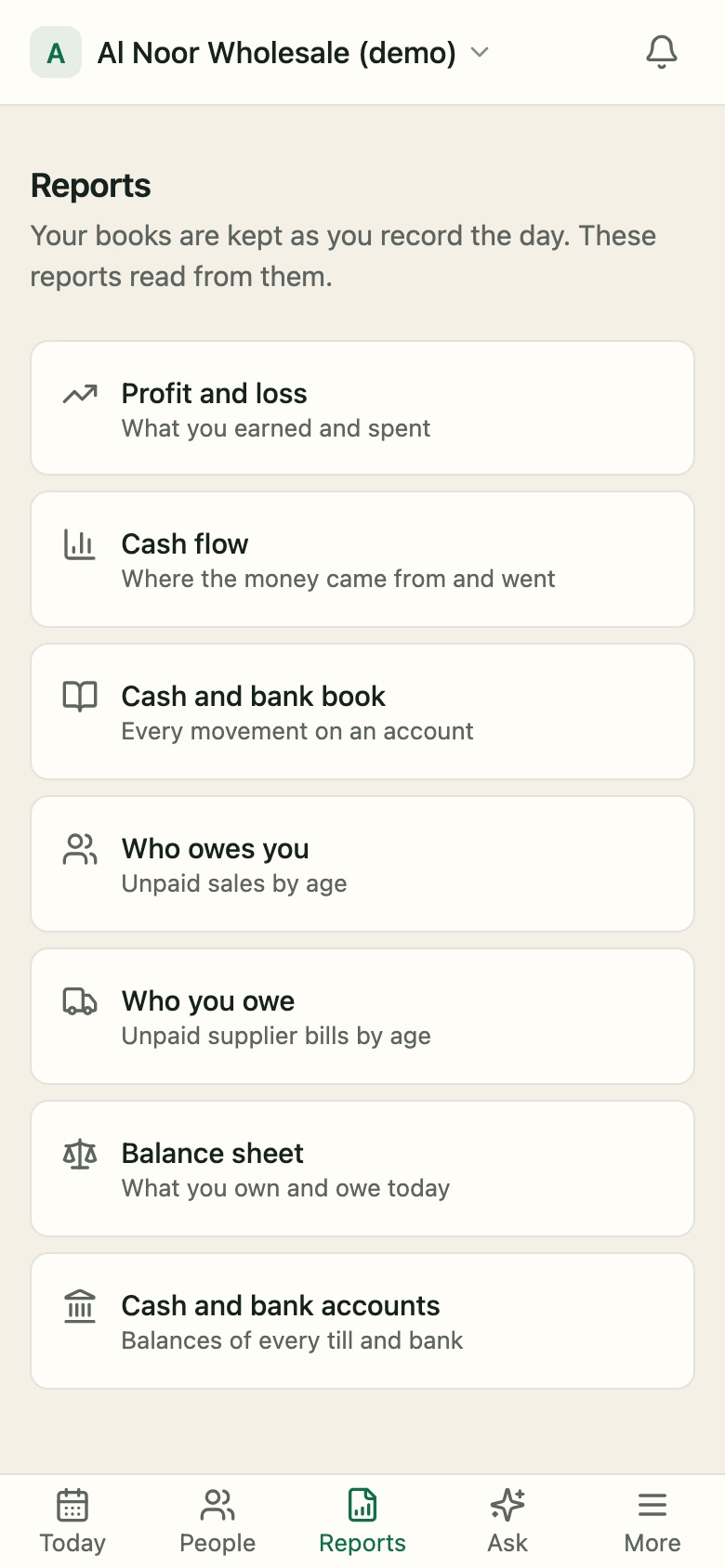
- Profit and loss: what you earned and what you spent over a period.
- Cash flow: where the money came from and where it went.
- Cash and bank book: every movement on one account, like a bank statement.
- Who owes you and Who you owe: open balances by how old they are.
- Balance sheet: what the business owns and owes today.
14. Good habits
- Record as it happens. One entry takes a few seconds on your phone. Doing it at once is easier than remembering at night.
- Always add a note. 40 bags basmati rice is much easier to find later than an amount alone.
- Count cash at the end of the day. Compare your drawer with Closing cash. If they differ, an entry is missing or wrong.
- Check People once a week. Follow up with anyone who has owed you for a long time.
- Never re-type a mistake as a new entry. Correct it instead, so your history and balances stay right.
For your accountant
Every Daybook entry is posted as a real accounting document, so the books are complete without extra work:
| Daybook entry | What BIZA posts |
|---|---|
| Sold goods | An issued sales invoice (one line, no tax), plus a payment if paid on the spot |
| Received money | A customer receipt, applied to the oldest unpaid invoices first; any excess is a customer advance |
| Bought goods / Spent | An approved expense in the chosen category, paid from the account chosen or owed to the supplier (Accounts Payable) |
| Paid supplier | Expense payments, oldest open expense first |
| Gave a loan / Loan paid back | A journal entry to Loans Receivable |
| Other income | A journal entry to Other Income |
| I put money in / I took money out | A journal entry to Owner's Capital / Owner's Drawings (equity), created the first time if the chart has none |
| + New cash or bank account | A current-asset account under 1000 Cash and Cash Equivalents (next free code for cash, bank or other); money in it now is posted as its opening balance (Opening Balance Equity) on the day before the entry |
| + New category | An expense category posting to the same expense account as the Daybook's general category; point it at its own account under Expenses → Categories for a separate P&L line |
| Correct / Cancel | A credit note, payment void or reversing journal dated like the original; nothing is deleted |
Sales from the Daybook are for businesses that do not issue ZATCA Phase 2 e-invoices. In a workspace that does, record sales from Sales → Invoices; the Daybook says so when you try.