Online store catalogue: which products show, and where
Manage what your BIZA online store sells: put products on the website (one by one, all photographed products at once, or straight from a photo upload), see exactly which pages and sections a product appears on, control featured order, sold pieces, new arrivals, availability, specifications, related pieces, showrooms and enquiries, and fix the usual reasons a product is missing.
Online store catalogue: which products show, and where
Your online store sells the products you already keep in BIZA. Nobody copies them into a separate website. This guide is about the catalogue: which of your products the website shows, where on the website each one appears, and how it is presented.
To change the words, pictures and sections of a page, see Online store: edit your website by clicking on it. Everything here is under Apps → Storefront unless it says otherwise. The product switches are on the Storefront app's Store Products page, not on Inventory → Products: the Inventory list is your full product record and has no website switches.
Download this guide as a PDF: English · العربية
Changes in this guide go live straight away. There is no draft and no Publish button for them. The website updates within about a minute.
1. When does a product show on the website?
A product shows on the website only when all of these are true:
| Condition | Where you set it |
|---|---|
| The product is Active | Inventory → Products |
| It has at least one active variant | Inventory → the product → Variants |
| In store is switched on | Storefront → Store Products |
| It is not hidden as sold (see section 6) | Stock, or Store details → Availability |
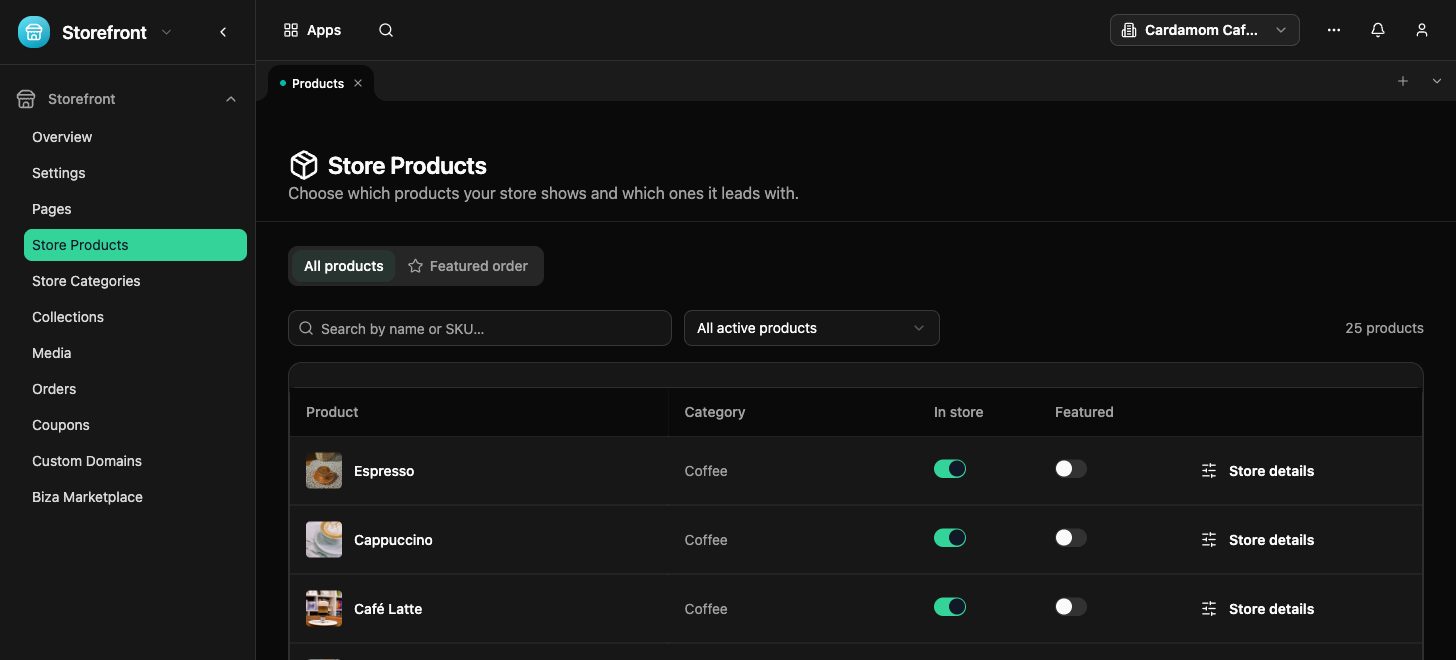
Storefront → Store Products: the In store and Featured switches. Inventory → Products has no website switches.
A photo is not one of the conditions, and adding a photo does not switch a product on. A product without a photo can be on the website (it shows a plain placeholder). A product with photos stays off the website until someone switches In store on.
New products start off the website. Adding a product in Inventory, importing a catalogue or uploading its photos never puts it on the website by itself. Section 3 covers the quick ways to do it.
2. Where does an "In store" product appear?
Switching In store on does not place a product on one particular page. It makes the product available to the website, and each page and section then picks from the available products by its own rule:
| Place on the website | Which in-store products it shows |
|---|---|
All products (/products) |
All of them: featured ones first, then the ones most recently added to the store |
| A category page | Those in that category or its sub-categories, if the category is shown in the store (section 8) |
A collection page (/products?collection=…) |
Those in the collection, in the collection's order |
New arrivals (/new-arrivals) |
Those listed in the last 60 days (you can change the number; see section 6). If nothing is that new, the newest 24. |
| Search on the website | Those whose name or SKU (product or variant) matches |
A showroom page (/showrooms/…) |
Those with stock at that showroom's locations (section 10) |
| The product's own page | Opens only while the product is in the store |
| "Related pieces" on another product's page | The products picked for it, or else products from the same category |
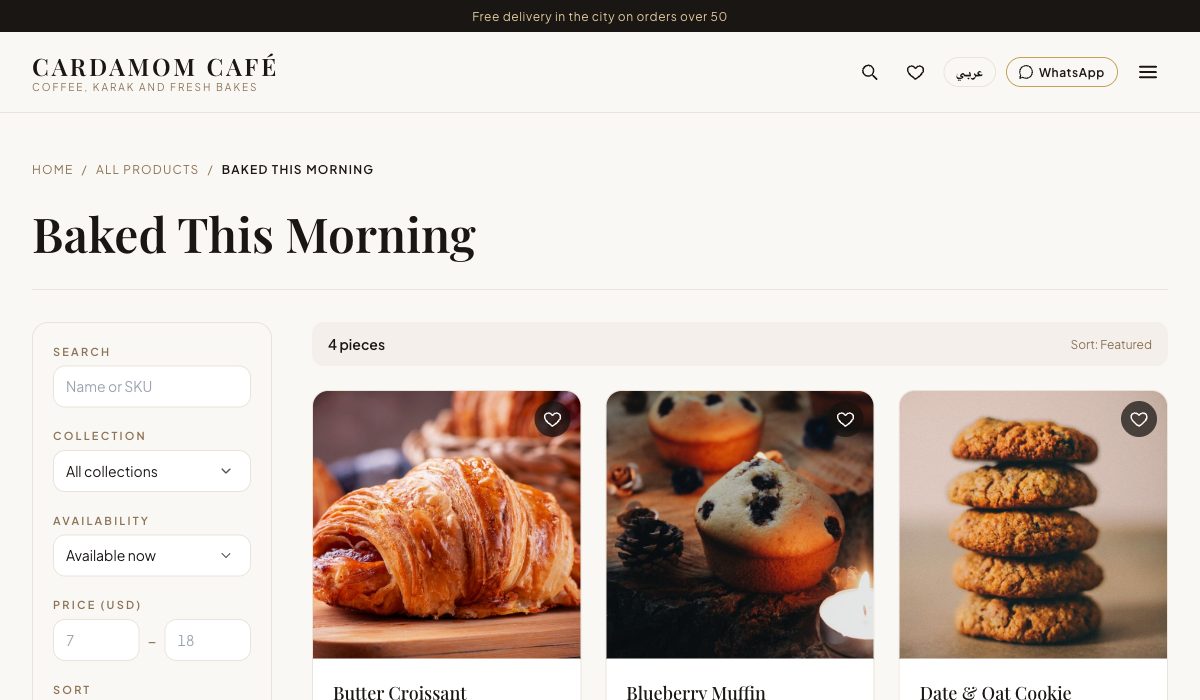
A category page on the website: the in-store products of that category.
Homepage and other page sections. A Product Grid, Product Carousel or Featured Products section, added in the page editor, has a Products to show setting that decides what it shows:
| Section setting | What it shows |
|---|---|
| All store products | All in-store products, featured ones first, up to the section's limit |
| Featured products | Only products with Featured on, in the Featured order |
| One category | In-store products from that category |
| A collection | The collection's in-store products, in the collection's order |
| Products I pick | Exactly those products, in that order. Any that are not in the store are skipped. |
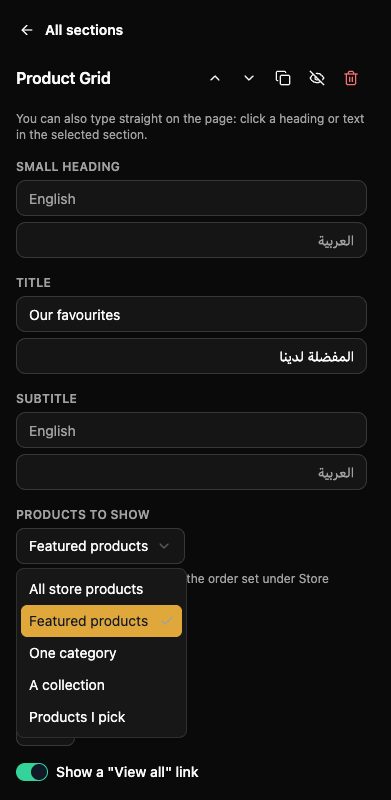
A Product Grid's Products to show setting, in the page editor.
So, to put a product on the homepage:
- The homepage shows featured products: switch on Featured (section 4).
- It shows a category: make sure the product is in that category.
- It shows "Products I pick": add the product to that section in the page editor.
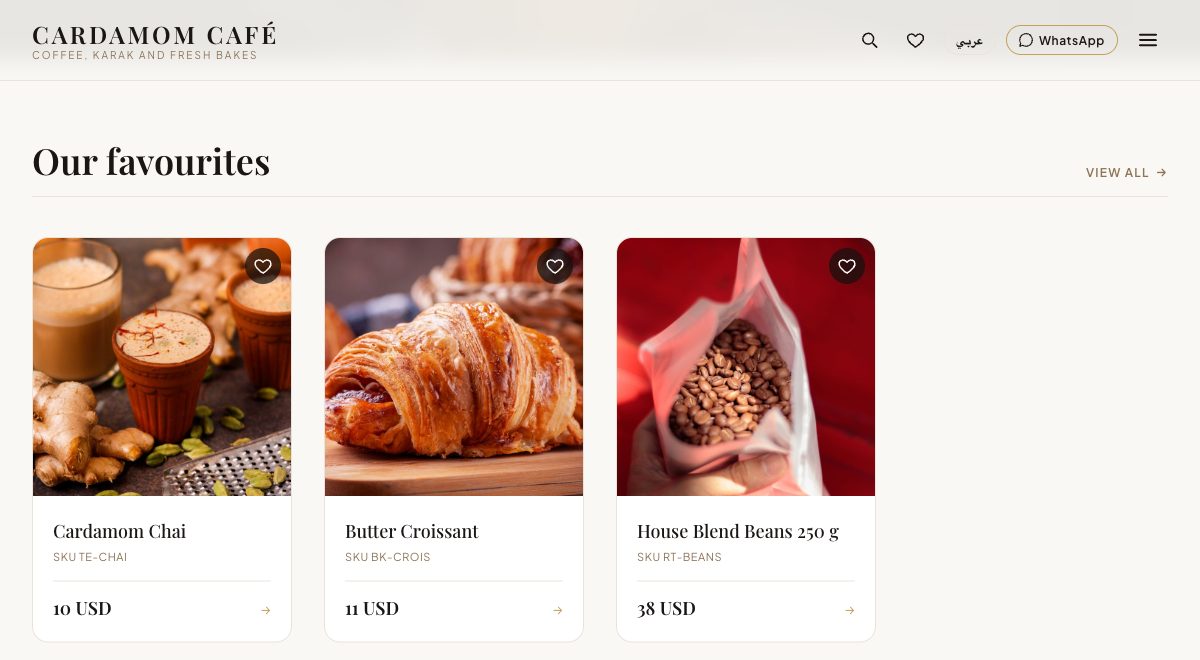
The homepage section above is set to Featured products: it shows only products with Featured on, in the Featured order.
Finding out which kind of section your homepage has: open the page in the editor (Storefront → Pages → ⋯ → Edit on the website), select the product section, and read its Products to show setting. Its name tag also says where its products come from, for example featured pieces or category "Sofas".
Every section has a limit: 8 products for a grid and 10 for a carousel, unless you change it. A product can be in the store and match the section's rule, and still not show because the section is already full. It still appears in All products, and a section with View all switched on links there.
3. Putting products on the website
One at a time
Storefront → Store Products: switch In store on. Switch it off to take the product down; its own page stops opening too.
Every photographed product at once
- Open Storefront → Store Products.
- In the list filter, choose Has photos, not on website. It lists every active product that has a photo and was never added to the website.
- Press Put all N on the website.
Products that someone deliberately switched off are not in this list and are left alone. Only products that were never added are included.
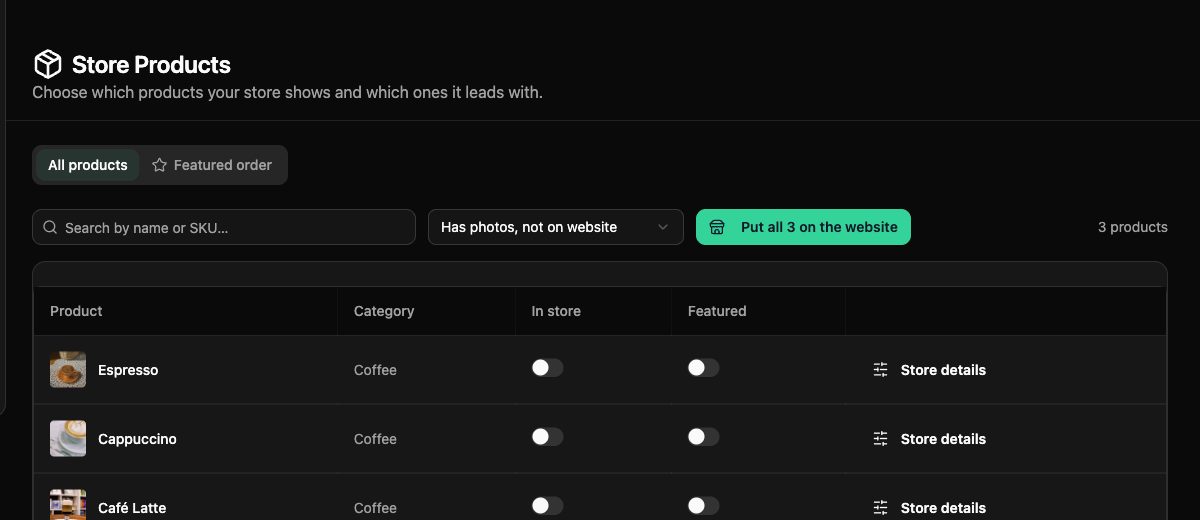
Three photographed products that were never put on the website, and the button that adds them all.
Straight from a photo upload
Inventory → Products → Bulk Image Upload saves many photos at once and matches each file to a product by its SKU (for example PTF-158.jpg). If your workspace has an online store, tick Also show these products on the website before pressing Upload: every product that receives a photo is added to the website as well. The box starts unticked, so an upload never publishes anything unless you ask it to. Products already on the website, or switched off there, are left as they are.
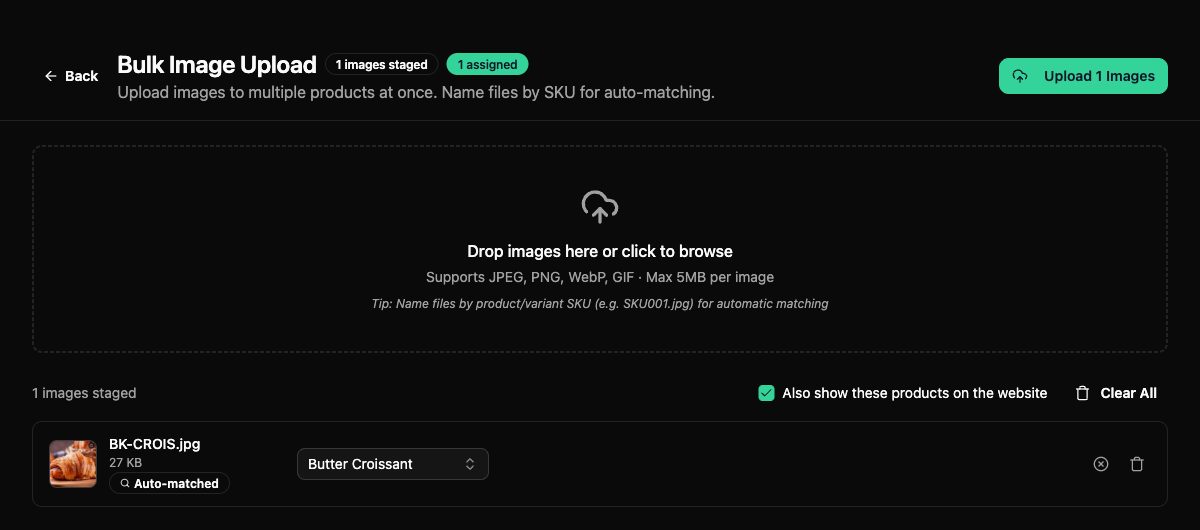
A photo matched to its product by SKU, with Also show these products on the website ticked.
Which SKU to name a file with. Use the product's SKU. If the product has only one variant, that variant's SKU works too, and so does a variant SKU that is the same as the product's. The photo goes on the product either way. The one exception is a product with several variants (sizes, colours): a file named with one variant's own SKU puts the photo on that variant only. The website shows the product's photos, so that product is not added to the website. Use the product's SKU for photos meant for the website.
4. Featured products and their order
- Featured (Storefront → Store Products) marks the products your store leads with. Switching it on also switches In store on.
- On the Featured order tab, drag products or use the arrows, then Save order. Products earlier in this list come first in All products and in every Featured products section.
- Switching In store off also removes the product from Featured.
5. Store details: how a product is presented
In Storefront → Store Products, press Store details on a product. Everything here is about the website only; your product record in Inventory is unchanged. Press Save when you are done.
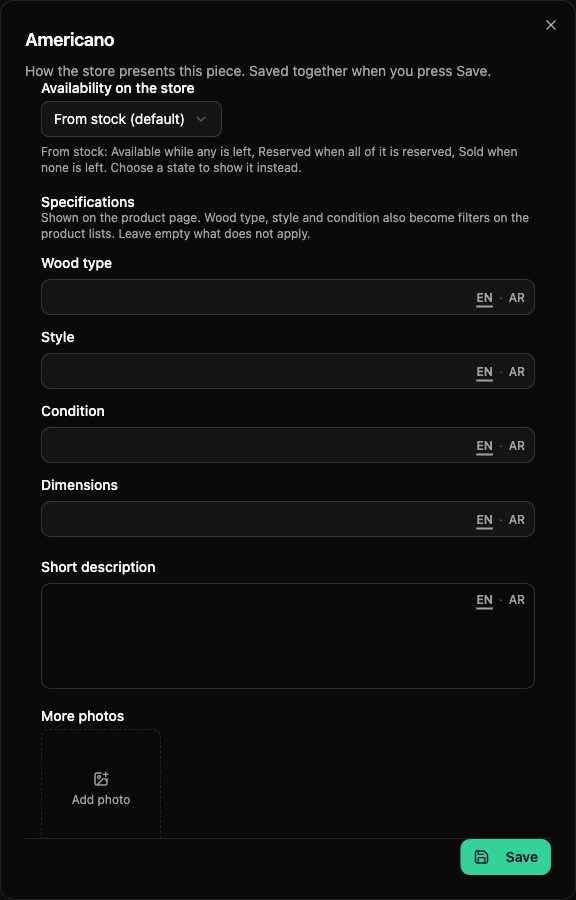
Store details for one product.
| Field | What it does |
|---|---|
| Availability on the store | From stock (the default) works it out: Available while any is left, Reserved when all of it is reserved, Sold when none is left. Choose a state (Available, Reserved, In transit, Made to order, Sold) to show that instead, whatever the stock says. |
| Short description | A line or two on the product page, in English and Arabic. |
| More photos | Shown after the product's own photos. |
| Video | A YouTube or Vimeo link, or a direct https:// link to a video file. |
| Related pieces | Up to 8 products shown under this one. Empty means products from the same category. Sold pieces are never shown as related. |
| Search title / Search description | What search engines show for this product. |
| Specifications | Wood type, style, condition and dimensions on the product page. Wood type, style and condition also become filters on the product lists. Leave empty whatever does not apply. |
Name, price, photos, SKU and category are part of the product itself. Change them in Inventory → Products.
6. Sold pieces, new arrivals and how cards look
Storefront → Settings → Showrooms & catalogue → Catalogue.
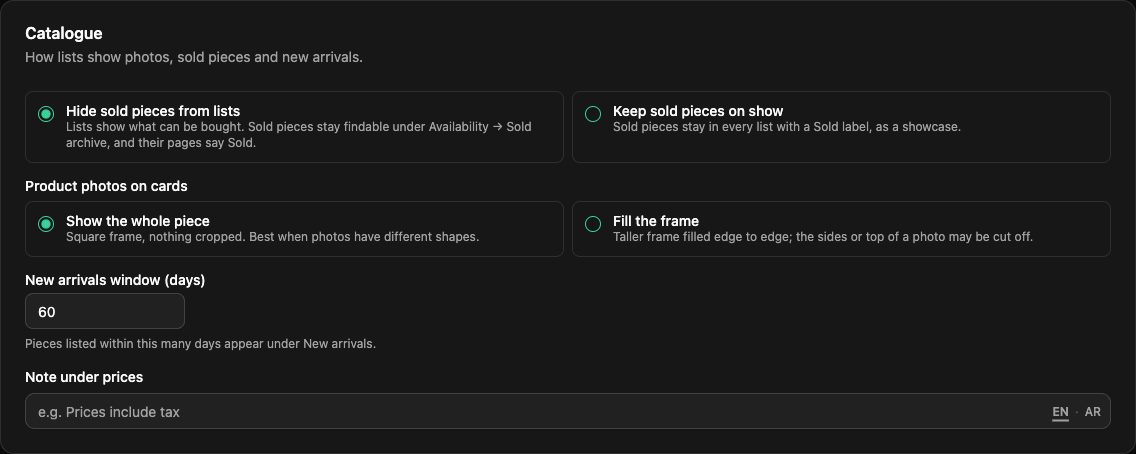
The Catalogue settings: sold pieces, card photos, new arrivals and the note under prices.
Sold pieces
A product counts as sold when its stock is tracked and none is left at any location, counting only its active variants. Negative stock counts as none. A product whose stock is not tracked is never sold, unless you choose Sold in its Store details.
What the website does with sold pieces depends on one setting:
| Setting | On the website |
|---|---|
| Hide sold pieces from lists (the default) | Sold pieces leave All products, categories, collections, New arrivals and homepage sections. Shoppers can still find them under Availability → Sold archive in the product list filters, and their own page says Sold. A section of Products I pick still shows them. |
| Keep sold pieces on show | Sold pieces stay in every list with a Sold label, as a showcase. |
Either way, a sold piece's page shows Sold instead of the enquiry button, and it comes back as available as soon as its stock goes above zero again.
New arrivals
New arrivals window (days), 60 unless you change it: a product counts as new for this many days after it was published to the store (or, if that date is not set, after the product was created).
Cards and prices
- Product photos on cards: Show the whole piece (square, nothing cropped, best when photos have different shapes) or Fill the frame (taller and edge to edge; sides or top may be cut off).
- Note under prices, for example "Prices include VAT".
- A product without a price shows Price on request. It still appears everywhere, and it is placed last when shoppers sort by price.
7. What shoppers can do with the catalogue
On All products, category, collection and New arrivals pages, shoppers can:
- Search by name or SKU.
- Filter by category, availability (Available, Reserved, In transit, Made to order, Sold archive), showroom, price range, and by wood type, style and condition where you filled them in, plus your products' own attributes such as size or colour.
- Sort by featured order (the default), newest, price low to high, price high to low, or name.
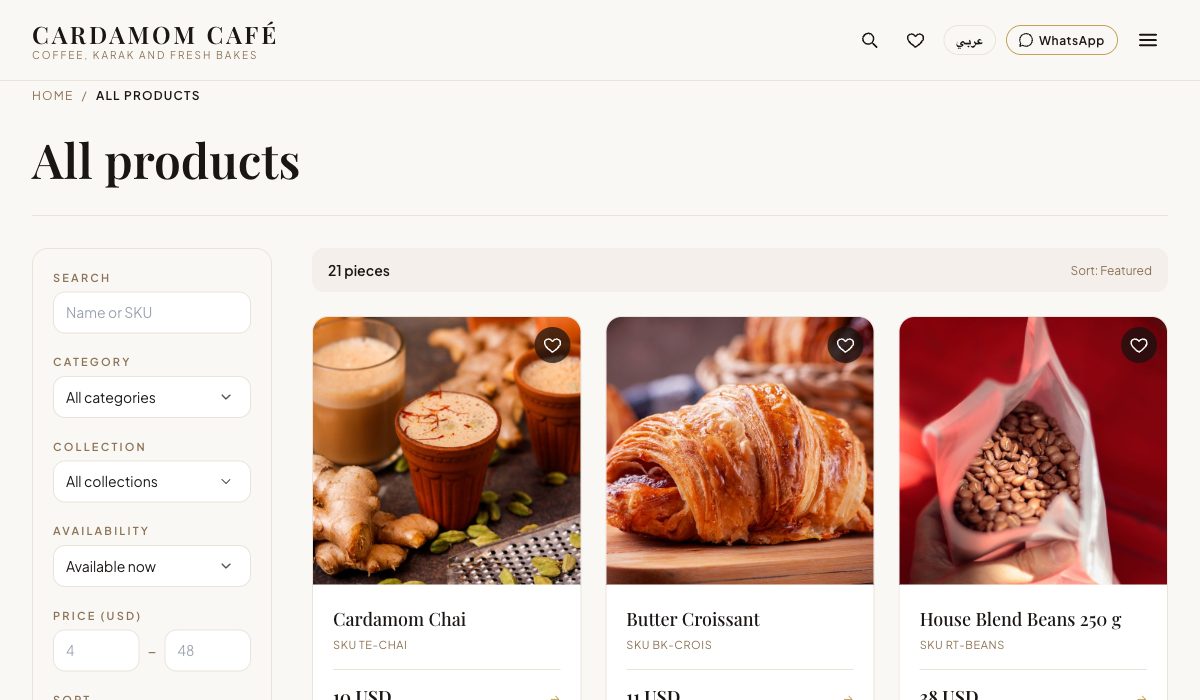
All products on the website, with search, filters and sorting on the left.
8. Categories in the store
Categories come from Inventory. Storefront → Store Categories decides which ones shoppers see, what they are called and in what order (see the website editor guide, step 10).
A category being hidden from the store does not take its products off the website. Those products still appear in All products, search, collections and featured sections; there is just no page or menu entry for that category. To take products down, switch them off in Storefront → Store Products.
9. Collections
A collection is a hand-picked list of products in your order, with its own page. Create one under Storefront → Collections (see the website editor guide, step 11). Only products that are in the store show on a collection's page. Adding a product to a collection does not switch it on.
10. Showrooms, stock and enquiries
Storefront → Settings → Showrooms & catalogue.
Showrooms are the branches your customers see. For each one, give a name, city, address, opening hours, phone, photos and map, and tick the stock locations whose stock counts as that showroom's. The website then:
- shows which showroom holds a piece,
- lets shoppers filter the catalogue by showroom,
- gives each showroom its own page (
/showrooms/<address>), listing what it holds, - sends an enquiry about a piece to that showroom's WhatsApp, or to the store's WhatsApp if the showroom has none.
Enquiries. Enquiry and viewing-request forms on the website create leads in CRM → Leads, with the piece, page, showroom and campaign attached. Optionally, each enquiry can also be sent to another system's web address.
Common questions
I uploaded photos, but the products aren't on the website. Photos don't switch products on. Use Storefront → Store Products → Has photos, not on website → Put all N on the website, or tick Also show these products on the website in Bulk Image Upload next time.
I switched a product on, but it isn't on the homepage. The homepage shows what its sections are set to show (section 2). Make the product Featured, put it in the section's category, or add it to a Products I pick section, and check the section isn't already full. It is in All products either way.
A product is switched on, but I can't find it on the website. Check, in this order:
- Is it Active in Inventory, with an active variant?
- Is its stock zero or negative? With Hide sold pieces from lists, it only shows under Sold archive. Correct the stock in Inventory, or set Store details → Availability to Available or Made to order.
- Has Store details → Availability been set to Sold by hand?
- Wait a minute and refresh. The website keeps a short cache.
The stock shows −1 or −5. The product was sold or moved out more often than it was received. The website treats it as having none, so it shows as sold. Correct the stock with a stock adjustment in Inventory.
The product shows "Price on request". It has no price. Set one on the product in Inventory. Until then it still shows, without a price.
I switched a product off. Will "Put all on the website" switch it back on? No. That button and the Bulk Image Upload box only add products that were never on the website. A product someone switched off stays off.
The count on my website is lower than the products with photos. The difference is products that were never switched on, plus products hidden as sold. Use the Has photos, not on website filter for the first, and correct stock for the second.